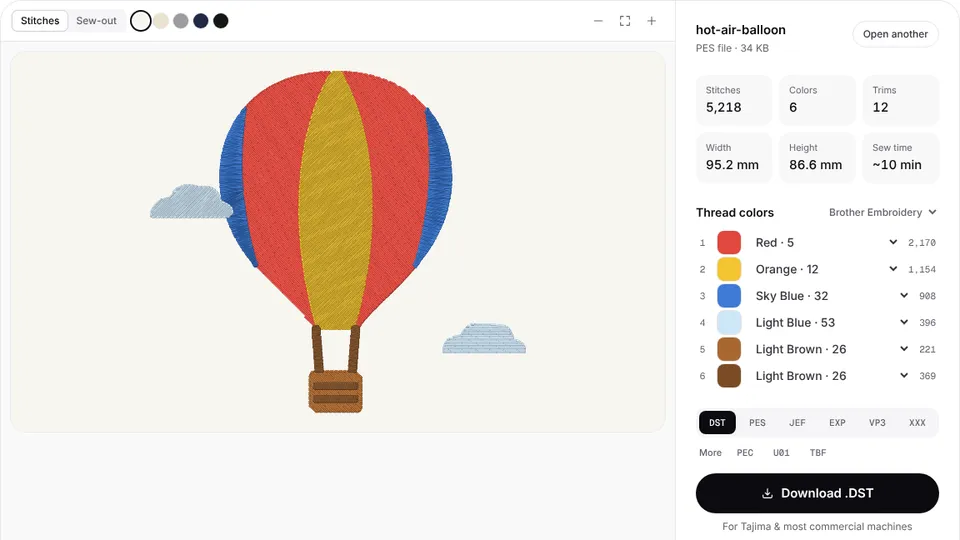
 Free previewEmbroidery file converterConvert PES, DST, JEF, EXP, VP3 and XXX files to any other machine format.Open the tool
Husqvarna Viking and Pfaff are sister brands, together with Singer, and their embroidery machines share the VP3 format, the same USB routine and the same cloud service. What differs from model to model is how many other formats it reads and whether it has Wi-Fi.
This guide covers the formats by model, loading from a USB stick, the mySewnet cloud, hoop sizes, older HUS, SHV and PCS designs and how to convert them, and what to check when a design won't show. Facts come from the machines' manuals and the Husqvarna Viking and Pfaff machine pages.
Which file formats do Husqvarna Viking and Pfaff machines read?
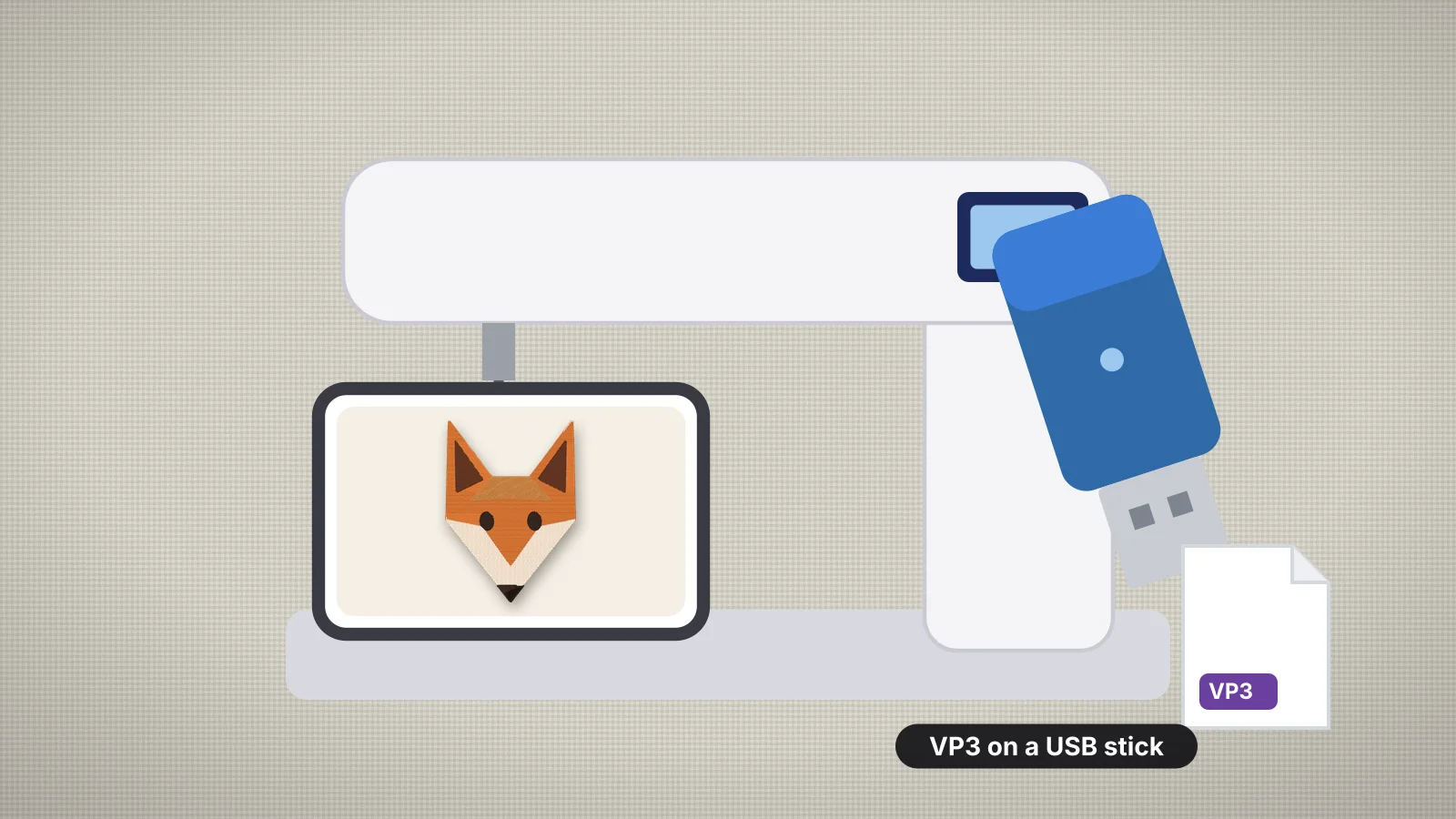
Every current Husqvarna Viking and Pfaff embroidery machine reads VP3, so VP3 is the format to use. It stores the stitches plus the exact color and name of every thread, so the machine shows the design in the colors it was made with. Beyond VP3, the models fall into two groups:
| Machines | Formats they load |
|---|---|
| Designer Jade 35, Pfaff creative 1.5, creative ambition 640, creative expect 350, and the Singer SE9180 and SE9185 | VP3 only (the Jade 35 also loads .vf3 font files) |
| Designer Topaz 40, Topaz 50, Sapphire 85, Ruby 90, Epic 2; Pfaff creative 3.0, creative 4.5 | VP3, SHV, DHV, VIP, HUS, PEC, PES, PCS, XXX, SEW, JEF, EXP and DST |
| Designer Epic 3, Pfaff creative icon 2 | The same list plus VP4 |
Even on the long-list machines, the Ruby 90 manual notes that some versions of these formats aren't fully supported, so a PES or DST from elsewhere may still need converting. VP3 also keeps your colors: other formats show in the nearest matching colors, and DST has none. For a VP3-only machine, convert first with PES to VP3, JEF to VP3 or DST to VP3.
How to load a VP3 file from a USB stick
- Format the stick as FAT32. The Ruby 90, Sapphire 85, creative 3.0 and SE9185 manuals all say the stick must use FAT32. On Windows, right-click the stick in File Explorer and choose Format; on a Mac, use Disk Utility, Erase and MS-DOS (FAT).
- Back up the included stick if you use it. Many models come with a USB embroidery stick holding bonus designs, such as the 1 GB stick with the Topaz 40 and 50, and the 86 designs on the creative 1.5's stick.
- Copy the .vp3 file. Unzip downloads first. Folders are fine: the file manager on models such as the Ruby 90 opens folders and can create, rename, move and copy them.
- Plug the stick in, open the file manager and choose the USB device. Open the folder and select the design to load it.
- Attach the hoop the machine asks for, or pick another that fits, then go to stitch-out.
A VP3-only machine simply doesn't list PES, JEF or DST files, so a stick full of designs can look nearly empty. Convert them to VP3 rather than renaming the file extension, which only produces a file the machine can't read.
Keep file names short and plain, with letters, numbers, hyphens and underscores, so designs are easy to find in the file manager. A Mac can leave hidden files starting with ._ beside your designs; ignore or delete them. Designs you sew often can be copied from the stick into the machine's own memory, so they're there without the stick.
Try it with your own design
Sign up free, upload an image and get a stitch preview in under a minute.
Drop your image here
PNG, JPG, SVG, PDF or AI · stays on your device
Not sure what to expect? See real examples or how it works.
Wi-Fi and the mySewnet cloud, now CREATIVATE
Wi-Fi models can open designs from a cloud folder instead of a stick. They include the Designer Epic 2, Epic 3, Ruby 90 and Sapphire 85, the Pfaff creative icon 2 and creative expect 350, and Singer's SE9180 and SE9185.
- Connect the machine to your Wi-Fi network and sign in to a mySewnet account from the machine. The account can be created from the machine or the website.
- On your computer, install the mySewnet cloud sync tool, which the manuals list as complimentary software for PC and Mac. It links a folder on your computer to your cloud.
- Drag the VP3 into that folder. It syncs to the cloud and appears in the mySewnet cloud folder on the machine.
- Or save the design to the cloud from mySewnet embroidery software, now part of CREATIVATE, which uses the same cloud.
husqvarnaviking.com and pfaff.com now lead to Singer's site, which sells these services as CREATIVATE (formerly mySewnet). Its cloud storage is called the Vault, and how much space you get depends on the membership. The machine manuals still say mySewnet, and the steps are the same. The mySewMonitor app shows the machine's embroidery status on a phone.
How big a design can each model sew?
The largest field and the largest hoop in the box often differ, because the biggest hoops are sold separately:
| Model | Largest field | Largest included or listed hoop |
|---|---|---|
| Designer Jade 35, Topaz 40 | 240 × 150 mm | DESIGNER Jewel Hoop, 240 × 150 mm |
| Designer Topaz 50 | 360 × 200 mm | DESIGNER Royal Hoop, 360 × 200 mm |
| Designer Sapphire 85 | 360 × 350 mm with the optional Majestic hoop | DESIGNER Royal Hoop, 360 × 200 mm |
| Designer Ruby 90, Epic 2 | 360 × 350 mm with the optional Majestic hoop | DESIGNER Imperial Hoop, 360 × 260 mm |
| Designer Epic 3 | 450 × 450 mm with the optional Mega Turnable Hoop | DESIGNER Regal Hoop, 465 × 260 mm |
| Pfaff creative expect 350 | 170 × 100 mm | 170 × 100 mm hoop |
| Pfaff creative 1.5, creative ambition 640 | 240 × 150 mm | creative Master Hoop, 240 × 150 mm |
| Pfaff creative 3.0 | 260 × 200 mm | creative Elite Hoop, 260 × 200 mm |
| Pfaff creative 4.5 | 350 × 360 mm | creative Deluxe Hoop, 360 × 200 mm |
| Pfaff creative icon 2 | 350 × 360 mm | creative Grand Dream Hoop, 360 × 350 mm |
The turnable hoops sew a large design in two halves, turning the hoop partway through. Metric hoops don't match the digitizer's inch presets, so type the size: about 220 × 130 mm leaves a margin in a 240 × 150 mm hoop. The hoop size calculator checks any size, and the design splitter cuts an oversized design into hoopings.
Older HUS, SHV, VIP and PCS files
Older designs often come in the formats of earlier Viking and Pfaff machines. The long-list models above still open them; VP3-only machines need them converted.
| Format | Made for | On a current machine |
|---|---|---|
| HUS | Older Husqvarna Viking machines such as the #1+, Rose and Iris; colors come from a fixed 29-color palette | Opens on long-list models; convert with HUS to VP3 for others |
| SHV | The Husqvarna Viking Designer I, which read designs from floppy disks | Opens on long-list models; convert with SHV to VP3 |
| VIP | Husqvarna Viking and Pfaff machines after the two brands merged | Opens on long-list models; convert it in the brand's embroidery software |
| PCS | Older Pfaff creative machines such as the 7570 and 2140, and Pfaff's PC-Designer software | Opens on long-list models; convert with PCS to VP3 |
Embrizo's converter opens HUS, SHV and PCS files (read only) and saves them as VP3, PES, JEF or another format, keeping every stitch. It doesn't read VIP. After converting a HUS file, check the threads: the palette colors are basic, and you may want to set the exact ones you'll sew with.
What to check when a design won't show
| Problem | Likely cause | Fix |
|---|---|---|
| The stick isn't read | Formatted as exFAT or NTFS | Reformat it as FAT32 |
| A file on the stick isn't listed | A PES, JEF or DST file on a VP3-only machine, or a file still in its ZIP | Unzip it and convert it to VP3 |
| A design from the cloud isn't on the machine | The machine isn't signed in, or the cloud hasn't synced yet | Check Wi-Fi and the sign-in, and wait for the sync icon |
| The design doesn't fit the hoop | It's bigger than the attached hoop | Attach a bigger hoop, resize slightly or split the design |
| Colors look basic | A HUS, DST or other format without full colors | Use the VP3 version, or set the threads in thread color edit |
| It opens on a Ruby 90 but not on a Jade 35 | The Jade 35 loads VP3 only | Convert the design to VP3 for the smaller machine |
| Nothing opens at all | The design is still in its ZIP | Unzip it on your computer and copy only the .vp3 |
Embroidery file won't open on machine covers every cause, and the machine compatibility checker tells you whether your model reads a file and whether it fits.
Practice on a free design
167 ready-to-sew designs in every machine format, free with an account.

Making VP3 files with Embrizo
To make a VP3 from a logo or artwork, upload a PNG, JPG, WebP, SVG, PDF or AI file to the Embrizo digitizer and choose VP3.
- Your exact colors. VP3 stores full RGB thread colors, so you can keep the image's own colors, or match them to the Brother or Janome thread chart if you thread with those brands.
- A metric size. Type the width and height for your hoop, and the file never comes out larger than you set.
- Designs you already have. The file converter turns PES, JEF, DST, EXP and XXX files, and older HUS, SHV and PCS files, into VP3. The batch converter does up to 50 at once.
- A color sheet with each color in sewing order and its stitch count, useful as a checklist even though VP3 carries the colors.
It doesn't send designs into the cloud: drag the downloaded VP3 into your sync folder, or copy it to a stick. Digitizing and previews are free with an account; downloading the VP3 needs a plan. The Husqvarna Viking and Pfaff collections of the free design library have designs ready in VP3.