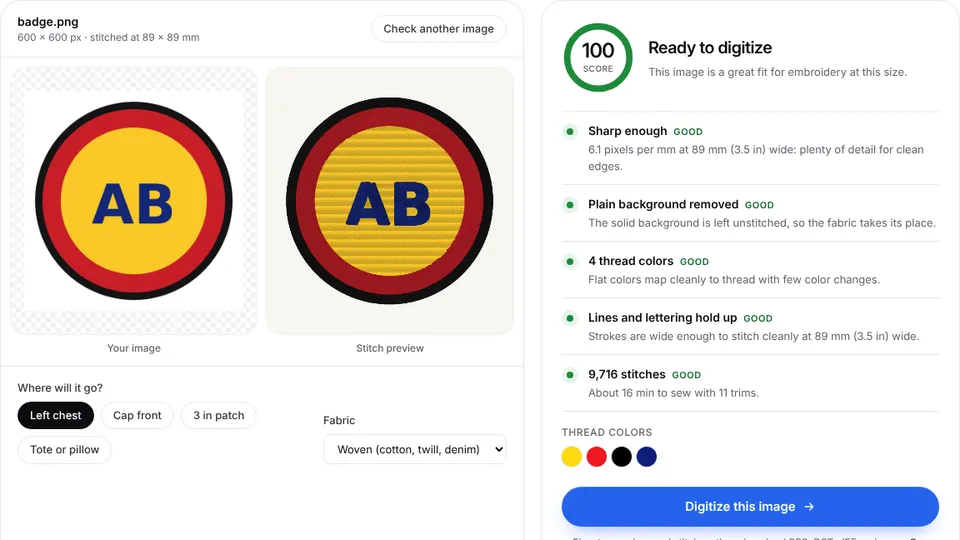
 Free toolEmbroidery image checkerUpload an image and see if it's ready to digitize: colors, fine detail, resolution and fixes.Open the tool
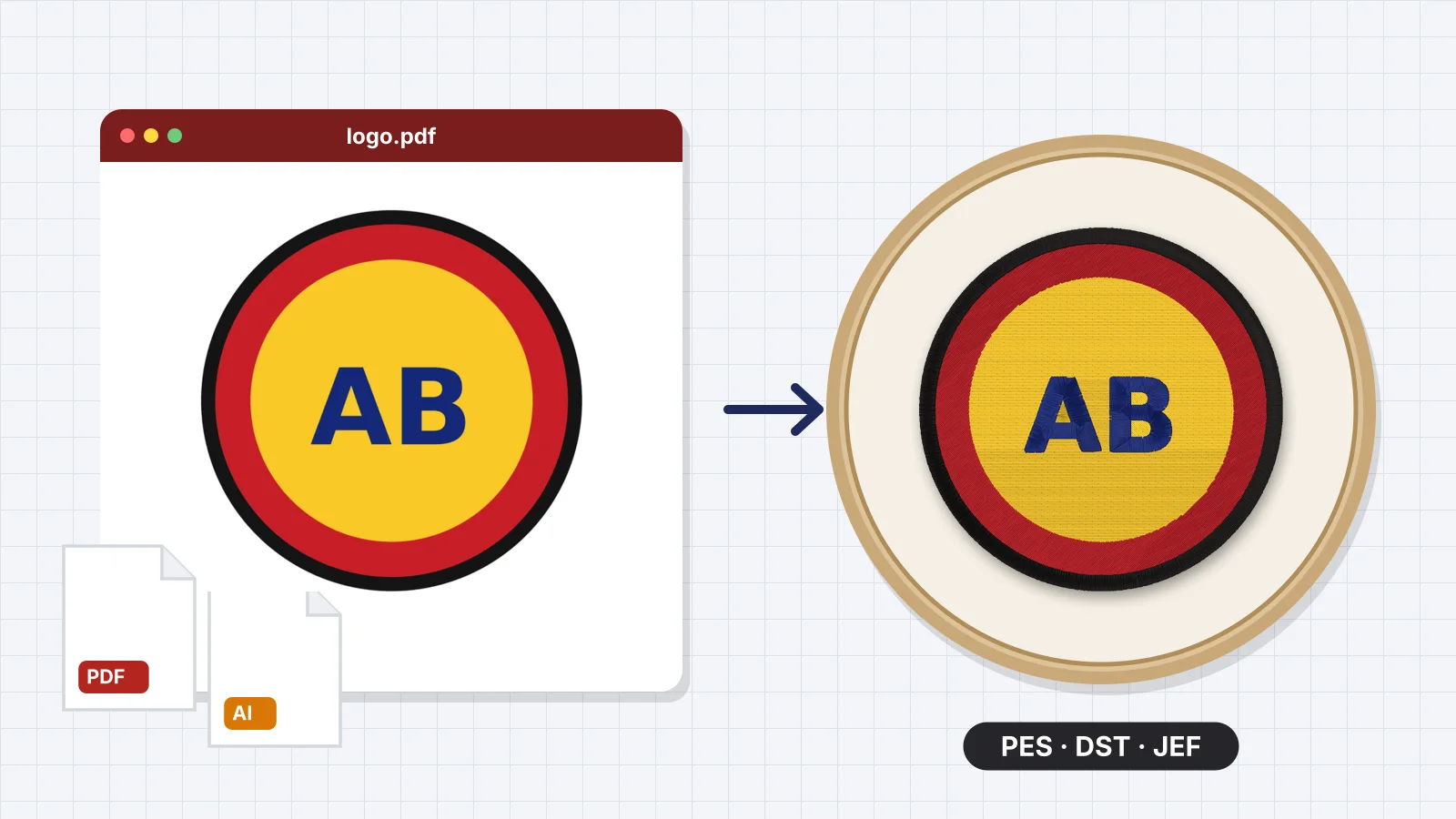
This guide is for anyone holding a logo as a PDF, an .ai file from a designer or an EPS from a print shop, and needing a PES, DST or JEF for an embroidery machine. A vector file is the best artwork you can start from, but it still isn't a stitch file, and a few minutes of cleanup decide how well it sews.
You'll learn what a vector file is, which ones open directly, how to prepare the artwork in Illustrator, the minimum sizes thread can sew and the steps to get a machine file, plus the honest limits of converting a vector automatically.
What is a vector file, and why is it the best input?
A vector file describes artwork as shapes, lines and fills rather than pixels, so it stays sharp at any size, with exact edges and flat colors. That's what embroidery needs: a digitizer works best from clean outlines and a handful of solid colors, which is exactly what a vector logo is. A photo or a small JPG has blurred edges and noisy colors that have to be cleaned up first.
| File | What it is | Opens in Embrizo? |
|---|---|---|
| .AI | Adobe Illustrator's file. Saved with Create PDF Compatible File, Illustrator's default, it holds a PDF copy of the artwork | Yes, page 1 |
| A page format that can hold vector artwork, pictures or both | Yes, page 1 | |
| .SVG | The open vector format of the web, saved by Illustrator, Inkscape, Affinity Designer and many other apps | Yes |
| .EPS | An older PostScript vector format, common from print shops | No: browsers can't open it, so save it as PDF or SVG first |
| .PNG, .JPG | Pixels only | Yes; aim for 1,000 to 2,000 px across the artwork |
A vector still has no stitches in it. A machine needs needle positions, a stitch type for every shape, underlay, pull compensation and a sewing order, and that's what digitizing adds. The vector artwork glossary entry has more on the difference.
Which vector files open directly in Embrizo?
PDF and AI files open directly: the browser draws the first page at 2,000 px on its longer side, with a transparent background, and the digitizer works from that picture. It all happens on your device, so the file isn't uploaded. A few files need attention first:
- AI files saved without PDF compatibility. Embrizo asks you to save again in Illustrator with Create PDF Compatible File checked, or to export an SVG or PNG.
- Password-protected PDFs. Remove the password, or export the page as a PNG.
- Files with several pages or artboards. Only page 1 is used, so put the version you want to stitch first or save it on its own.
- EPS files. Browsers can't open them, so open the EPS in a design app and save it as PDF or SVG; the EPS to PES page shows how.
- Other vector formats, such as CorelDRAW's CDR, also need exporting as PDF or SVG.
The 2,000 pixels cover the whole page, not just the logo. A 60 mm logo in the corner of a Letter page (279 mm tall) comes out only about 430 px wide, while the same logo on an artboard fitted to it gets the full 2,000 px. In Illustrator, choose Object > Artboards > Fit to Artwork Bounds before you save.
Try it with your own design
Sign up free, upload an image and get a stitch preview in under a minute.
Drop your image here
PNG, JPG, SVG, PDF or AI · stays on your device
Not sure what to expect? See real examples or how it works.
How to clean up the artwork before converting
Clean artwork converts to clean stitches. In Illustrator (menu names are similar in Inkscape and Affinity Designer), work on a copy of the file:
- Delete everything that isn't the design: crop marks, notes, color swatches, size labels and extra versions of the logo.
- Turn text into outlines with Type > Create Outlines, or Path > Object to Path in Inkscape, so a missing font can't change the lettering.
- Use flat, solid colors. Replace gradients, meshes, shadows, glows and transparency with solid fills. Each solid color becomes one thread; a gradient turns into a stack of bands.
- Cut the colors to the threads you'll use, typically two to six for a logo. Very close shades, such as two navy blues, are better merged into one.
- Expand strokes with Object > Expand Appearance and Object > Expand, then check every line's width at the size you'll stitch.
- Fit the artboard to the artwork and save: an .ai with Create PDF Compatible File checked, a PDF with File > Save As > Adobe PDF, or an SVG with File > Export > Export As.
If the artwork has a white or colored box behind the logo that isn't part of the design, delete it in the file. The digitizer removes plain backgrounds, but leaving out what you don't want stitched is always cleaner. The artwork preparation guide goes through the same checks for any image.
Minimum widths and sizes that will stitch
Measure details at the stitched size, not on screen. A line that looks bold on a 27 in monitor can be a fraction of a millimeter wide on a 75 mm chest logo.
| Detail at the final size | What happens | What to do |
|---|---|---|
| Lines under about 0.75 mm | Sewn as a single running or bean stitch line | Thicken to at least 1 mm if they should look solid |
| Shapes about 1 to 6.5 mm wide | Sewn as satin: smooth and shiny | Ideal for borders and lettering |
| Shapes over 6.5 mm wide | Sewn as tatami fill | Fine for large areas |
| Gaps under about 1 mm | Close up as the thread spreads | Open them up or merge the shapes |
| Capital letters under 5 mm | Hard to read in thread | Enlarge the text or use a bolder font |
Stroke weights in Illustrator are in points: a 1 pt stroke is 0.35 mm wide at full size, so it sews as a single line, while a 3 pt stroke is about 1 mm and starts to sew as satin. If you scale the logo down for a left chest, its strokes shrink with it. The small text guide covers lettering sizes in more detail, and the embroidery image checker flags details too fine for a chosen placement.
How to convert a PDF or AI file to PES or DST in Embrizo
- Open the [digitizer](/digitize) and sign in with a free account.
- Upload the PDF or AI file. Page 1 is drawn in your browser and the colors are separated automatically, with the background removed.
- Check the thread list. Switch off any color that isn't part of the design, merge near-duplicates, and pick threads from the Brother or Janome chart or keep the exact colors.
- Set the size or pick a hoop preset, and choose the fabric preset (woven, knit, stretch, fleece or towel, leather or vinyl).
- Read the design check and the preview. It flags details too fine to sew, sizes that are too small or large, many colors, a high stitch count and many trims. Watch the sew-out animation to see the order.
- Download your format: PES, DST, JEF, EXP, VP3, XXX or another, or a ZIP with all of them. Downloading needs a plan.
The converter pages for each pairing walk through the same steps with settings for that format: PDF to PES, PDF to DST, AI to DST and AI to PES. For app-specific export tips, see Illustrator to embroidery file and PDF to embroidery file.
What to do with EPS and other vector files
Save them as PDF or SVG first, because browsers can't open EPS files and Embrizo shows a message asking for a PDF, SVG or PNG instead.
- In Illustrator, open the EPS and choose File > Save As > Adobe PDF, or File > Export > Export As > SVG.
- In Inkscape, which is free, open the EPS and save it as PDF or plain SVG. The Inkscape to embroidery file page has export tips.
- In Affinity Designer or CorelDRAW, export as PDF or SVG.
- No vector software? Ask whoever made the logo for a PDF, an SVG or a PNG at least 2,000 px across.
Not every PDF is a vector, either. A PDF that only holds a small pasted-in picture or a scan stays blurry however large it's drawn, because drawing it bigger adds no detail. Ask for the original file, or redraw the logo sharp with the logo upscaler before digitizing. For SVG cut files from Cricut or Silhouette, see how to convert an SVG to an embroidery file.
Practice on a free design
167 ready-to-sew designs in every machine format, free with an account.
What Embrizo does with a vector file, and what it doesn't
Embrizo is a quick route from a PDF or AI logo to a machine file when you don't want to digitize by hand. It runs in the browser on Windows, Mac, Chromebook, iPad and Linux, and the artwork stays on your device.
| It does | It doesn't |
|---|---|
| Open PDF and AI files directly, page 1 at 2,000 px | Open EPS, CDR or password-protected PDFs |
| Separate the flat colors and remove the background | Read your vector paths as stitch objects: it works from the drawn page |
| Pick satin, fill or running stitch per shape, with underlay, pull compensation and lock stitches | Keep details thinner than thread can sew; they're simplified or flagged |
| Let you change the stitch type and thread of each color, and pick a fabric preset | Let you edit individual nodes or stitches by hand |
| Write PES, DST, JEF, EXP, VP3, XXX, PEC, U01 and TBF | Make files without a plan: digitizing and previews are free with an account, downloads need a plan |
If you want to control every path and stitch yourself, a manual digitizer is the better fit; how to use Ink/Stitch covers the free one. For most logos, upload the cleaned-up file to the digitizer, check the preview and test-stitch on scrap of the real fabric.