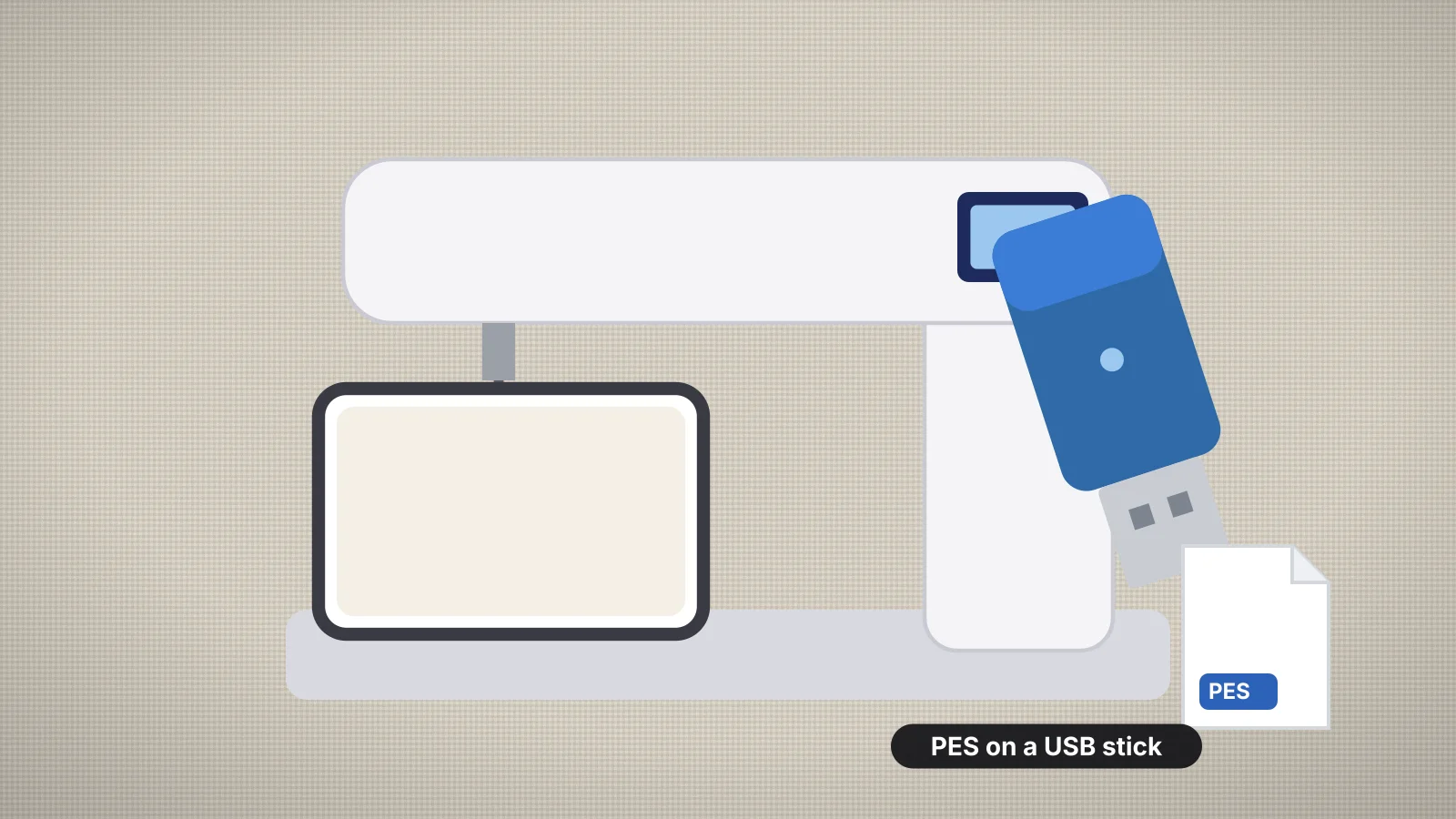
Brother makes some of the most popular home embroidery machines, from 4 × 4 in models like the SE600 to large-field machines like the Luminaire XP3 and the PR series multi-needles. Almost all of them load designs the same way, from a PES file on a USB stick. Wireless models add more options, and a few use a cable.
This guide covers the formats Brother machines read, setting up the stick, size limits by hoop, wireless transfer and what to check when a design won't show. Machine facts come from Brother's published specifications, collected on the Brother machines page. For other brands, see how to transfer designs to your machine.
Which file formats Brother machines read
PES is Brother's own format and the one to use. A PES file holds the stitches and thread colors, plus a PEC block with Brother palette colors and the thumbnail shown on the machine screen. Brother lists PES, PHC and DST for most current home models, and the Luminaire XP3 also reads PHA and PHX.
| Format | What to know |
|---|---|
| PES | Brother's native format, with thread colors and a screen thumbnail; Embrizo writes PES version 1, which machines old and new read |
| DST | Read by many Brother models, but it carries no colors, so the screen shows default colors |
| PHC, PHA, PHX | Other Brother formats that some models list; you rarely need to make them yourself |
| PEC | The machine part of a PES file on its own; worth trying on very old models that don't read newer PES versions |
Baby Lock machines read PES too. If a design is in another format, convert it with DST to PES or JEF to PES, or use the batch embroidery file converter for a whole folder.
Set up the USB stick
- Use a small, plain stick kept just for embroidery. Older machines in particular may not read large or newer sticks.
- Format it as FAT32. On Windows, right-click the stick in File Explorer, choose Format and pick FAT32. On a Mac, open Disk Utility, choose Erase and pick MS-DOS (FAT). Formatting erases the stick, so copy off anything you need first.
- Unzip the download first. The machine can't open a ZIP. Embrizo's All formats download, for example, holds every format, so copy only the .pes file.
- Copy designs to the top level, not into folders. The SE600, PE770 and PE800 read designs only from the top level of the stick.
- Keep names short, with letters, numbers, hyphens and underscores.
- Eject the stick before you unplug it, then open the design from the machine's embroidery screen.
A Mac can leave small hidden files starting with ._ next to your designs, and some machines list them as designs that won't open. Ignore them, or delete them from the stick.
Try it with your own design
Sign up free, upload an image and get a stitch preview in under a minute.
Drop your image here
PNG, JPG, SVG, PDF or AI · stays on your device
Not sure what to expect? See real examples or how it works.
Design size limits by hoop
A design has to fit the sewing field of the hoop you attach, and the largest hoop a machine takes sets the biggest design it can sew in one hooping. A design that's too big may show on the screen but can't be selected.
| Largest field | Brother models, for example |
|---|---|
| 4 × 4 in (100 × 100 mm) | SE600, SE630, SE700, SE725, PE535, PE545 |
| 5 × 7 in (130 × 180 mm) | PE800, PE900, SE1900, SE2000 |
| 6 × 10 in (160 × 260 mm) | NQ1700E, NQ3550W |
| 8 × 12 in (200 × 300 mm) | PR680W, a 6-needle machine |
| 9.5 × 14 in (240 × 360 mm) | Stellaire XJ1 |
| 10 5/8 × 16 in (272 × 408 mm) | Luminaire XP3 |
Leave a few millimeters clear at each edge. In the Embrizo digitizer, the 4×4, 5×7 and 6×10 presets fit a design to Brother's common hoops, and the hoop size calculator checks any size. A design bigger than your largest hoop can be split into several hoopings with the design splitter.
Wireless transfer: Artspira and Design Database Transfer
- Artspira, Brother's app for iPhone, iPad and Android, sends designs to compatible machines over Bluetooth or wireless LAN. Brother lists models such as the SE700, SE725, SE2000, PE545, PE900, NQ3550W, Stellaire XJ1, Luminaire XP3 and PR680W as compatible; on the PE900 it sends designs up to 5 × 7 in. Brother says Artspira designs can't be saved to a USB stick.
- Design Database Transfer, a free Windows app from Brother, sends files from your computer to wireless LAN models such as the SE725, SE2000, PE545, NQ1700E, NQ3550W, PR680W and PR1055X, with no USB stick needed.
- PE-Design 11, Brother's Windows digitizing software, can also send designs over the network.
Wireless transfer depends on the model, the app version and your network, so check Brother's compatibility list for your machine before you rely on it. Design Database Transfer is a Windows app, so on a Mac the USB stick is the simplest route. The embroidery machines with Wi-Fi list shows which models have it.
Cable-only and older Brother machines
- The [SE400](/machines/brother/se400) has no USB stick port. It connects to a computer by USB cable and shows up as a removable disk holding up to 12 designs, which are lost at power-off unless you save them to the machine's memory.
- Very old models may not read newer PES versions. If a PES file doesn't show, try the PEC or DST version of the same design.
- Memory limits. Some older and entry-level models limit the stitches or color changes in one design, or the number of designs they hold, so check the manual if a large design won't load while small ones do.
Making PES files for a Brother
To make a PES file from your own artwork, upload a PNG, JPG, WebP or SVG to the Embrizo digitizer and choose Brother as your machine.
- Brother thread colors. Each color is matched to the Brother thread chart, the palette PES uses, so the machine screen shows the design in close-to-real colors.
- PES version 1, the most widely supported version, with the PEC block and screen thumbnail. The All formats ZIP adds PEC and DST.
- A color sheet listing each color in sewing order with its thread and stitch count, handy on a PR series multi-needle, where colors are assigned to needles at the machine.
- Hoop presets for 4×4, 5×7, 6×10, 8×8 and 8×12 in.
Digitizing and previewing are free with an account; downloading the PES file needs a plan. For more Brother tips, see the Brother machines page.
Practice on a free design
167 ready-to-sew designs in every machine format, free with an account.
When a design won't show or open
| Problem | Likely cause | Fix |
|---|---|---|
| The stick shows no designs | Files in a folder or a ZIP, or a stick formatted as exFAT or NTFS | Unzip, then copy to the top level of a FAT32 stick |
| The design is listed but can't be selected | It's bigger than the attached hoop or the machine's field | Attach a bigger hoop, or digitize the design smaller |
| The colors on screen are wrong | It's a DST file, which stores no colors | Use the PES version, or thread up from the color sheet |
| A PES file doesn't appear on an old machine | A newer PES version than the machine reads | Try the PEC or DST version |
| Strange extra files are listed | Hidden ._ files from a Mac | Ignore them or delete them |
| The file name is cut off | A long or unusual name | Rename it with a short, simple name |
Embroidery file won't open on machine goes through every cause, and the machine compatibility checker tells you whether your model reads a file and whether it fits the hoop.