You copy a design to a USB stick, plug it in, and the machine shows nothing, an empty folder or a design you can't select. It's frustrating, but it's rarely the machine's fault. Embroidery machines are picky readers: they hide files they don't understand, refuse designs bigger than their hoops and ignore sticks they can't read.
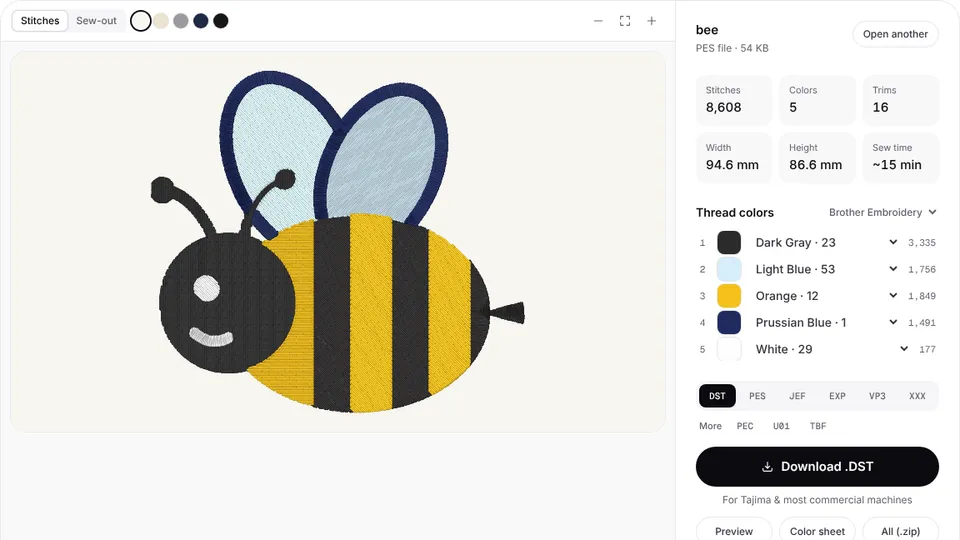
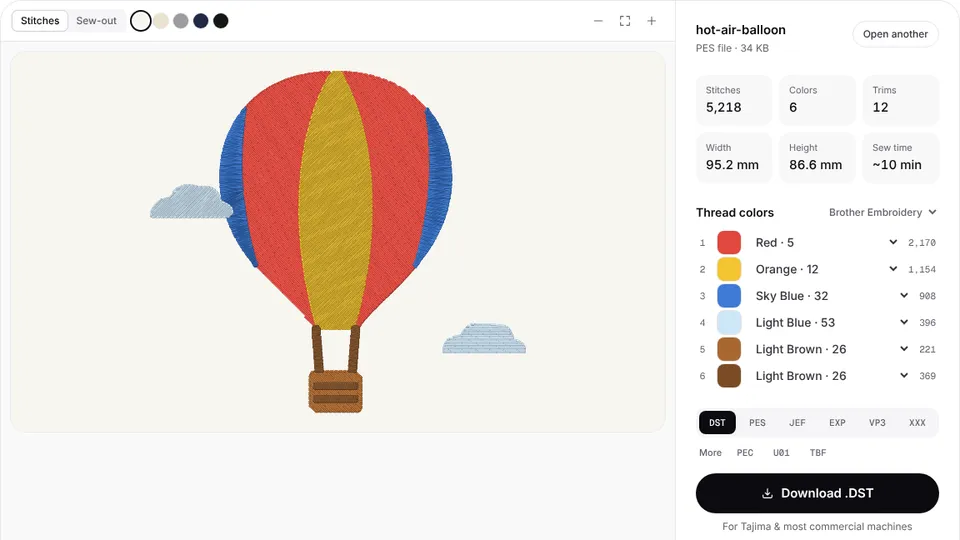
Almost every case comes down to the file, the stick or the design's size, and each has a quick fix. Work through the checklist below in order. To rule out the file itself, drop it into the embroidery file viewer first: if it opens there with the right size and colors, the file is fine and the problem lies between the stick and the machine.
Quick checklist: causes and fixes
| What you see | Likely cause | Fix |
|---|---|---|
| The stick shows no designs at all | The stick's format or size, or the file is in a folder | Use a small FAT32 stick and copy the file to the top level |
| Other designs show, but not this one | Wrong format, still zipped, or an odd file name | Copy the file in your machine's format, unzipped, with a short name |
| The design shows but won't load or start | Bigger than the attached hoop or the machine's field, or beyond the machine's limits | Attach a larger hoop, rotate the design, or resize it within about 10–20% |
| An error when opening it | A damaged download, or an older machine that can't read a newer version of the format | Download it again, or try the PEC or DST version |
| It opens, but the colors are wrong | DST and EXP store no thread colors | Set the threads from the color sheet, or use your machine's native format |
The file isn't in a format your machine reads
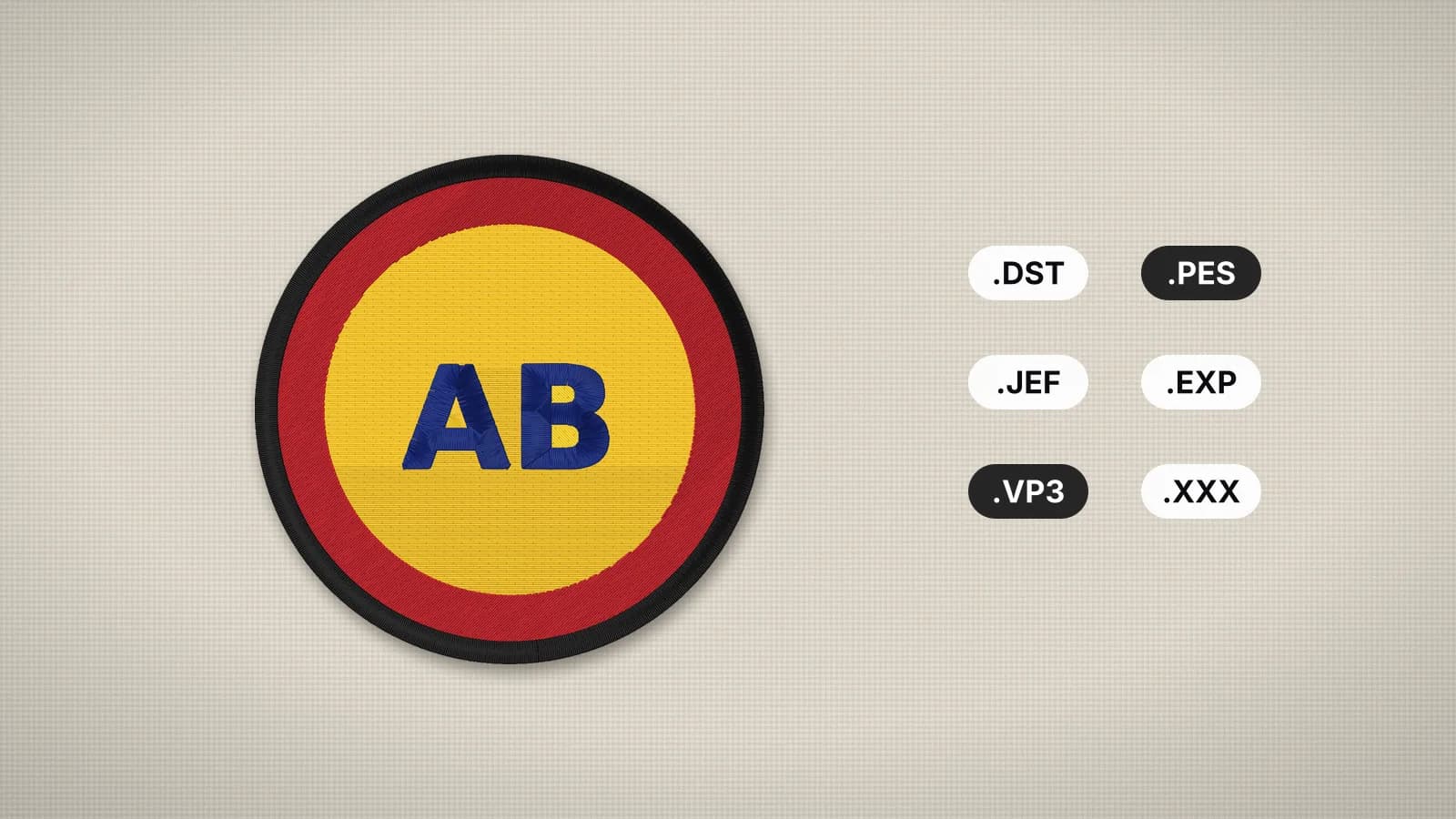
Machines list only the formats they read and quietly hide the rest, so a design in the wrong format simply isn't there. A Brother looks for PES, a Janome for JEF, a Bernina for EXP and a Husqvarna Viking or Pfaff for VP3. The Singer Legacy SE300, for example, reads .xxx and .dst files and ignores everything else.
- Check the extension. Turn on file extensions on your computer so you can see whether you have a .pes, a .dst or something else. Renaming a file doesn't convert it.
- Look for a working file by mistake. EMB, ART and other software files aren't machine files. Ask the seller or digitizer for your machine's format.
- Convert it. Open the design in the embroidery file converter and save it in your machine's format. Opening and checking a file is free; saving it in another format needs a plan.
- Not sure what your machine reads? The USB or embroidery data section of the manual lists it, the machine pages give the native format for each brand, and the machine compatibility checker checks a design against your model.
Very old machines may only read older versions of their format. If an older Brother or Baby Lock doesn't show a PES file, try the PEC or DST version from the same download.
Try it with your own design
Sign up free, upload an image and get a stitch preview in under a minute.
Drop your image here
PNG, JPG, WebP or SVG · stays on your device
Still zipped, or a damaged download
Designs are often sold and shared as ZIP files with every format inside. A machine can't open a ZIP, and copying the ZIP to the stick looks like copying a design when it isn't.
- Extract the ZIP on your computer: double-click it on a Mac, or right-click it and choose Extract All on Windows.
- Open the extracted folder and find the file for your machine, such as the .pes or .jef.
- Copy that file on its own to the top level of the stick.
A download that stopped early or was interrupted can leave a file that won't open anywhere. A file of 0 KB is a sure sign. Drop it into the file viewer: if the viewer can't open it either, or the stitches look scrambled, download it again from the source. If it opens normally there, the file is good and the problem is elsewhere.
The design is bigger than your hoop or field
Many machines check the design against the hoop you have attached. If it's larger than that hoop's field, the machine won't start, or asks you to change hoops, and no hoop can make a design fit if it's bigger than the machine's maximum field. Leave a margin too: a design that fills the field to the edge leaves no room for the presser foot near the frame.
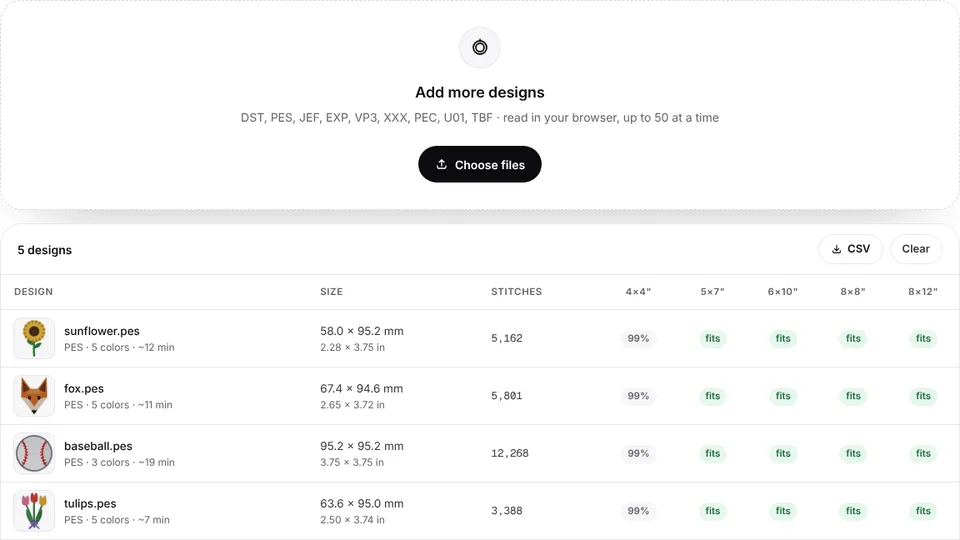
- Check the size. The embroidery hoop checker reads one or many files and marks which hoops each design fits, turned or not, with a 3 mm safety margin.
- Rotate it. A tall design may fit turned 90 degrees, for example in a 5×7 hoop used sideways. Most machines can rotate a design on screen.
- Resize it within about 10–20%. The design resizer scales a stitch file and checks the density. For bigger changes, digitize the artwork again at the right size; the resizing guide explains why.
- Check your machine's field. The embroidery hoops pages list which machines take each hoop size.
Too many stitches, colors or designs for the machine
Some machines, particularly older and entry-level home models, limit how much they can hold: a maximum number of stitches or color changes in one design, or a number of designs in memory. The Brother SE400, for example, holds up to 12 designs when it's connected to a computer. Limits vary by model and aren't always published, so check the manual if a big design won't load while small ones do.
- See what's in the file. The file viewer shows the stitch count, colors and trims. A large jacket back can run to tens of thousands of stitches, many times a left chest logo.
- Merge similar colors. Near-identical shades add color changes for nothing, and on a single-needle machine every change is a stop to rethread. In the digitizer, merge them before you download.
- Lighten or shrink the design. A lighter fill or a smaller size brings the stitch count down. Very large designs can be split for several hoopings in some desktop software and machines; Embrizo doesn't split designs.
- Free up memory. Delete designs you no longer need from the machine's memory, and keep only current jobs on the stick.
USB stick, folder and file name problems
| Problem | Why it happens | Fix |
|---|---|---|
| A large or new stick | Many machines, especially older ones, don't read large or newer sticks; Janome gives 16 GB as the largest for the Memory Craft 500E | Use a small, plain stick kept just for embroidery |
| Formatted as exFAT or NTFS | Many machines read only FAT32 | Format the stick as FAT32 on Windows, or as MS-DOS (FAT) in Disk Utility on a Mac |
| The file is in a folder | Some machines, such as the Brother SE600, PE770 and PE800, read only the top level of the stick | Copy the file to the top level |
| A long or unusual file name | Some older machines cut off long names or skip unusual characters | Rename it with a short name of letters, numbers, hyphens or underscores |
| Extra files from a Mac | macOS can leave small hidden files starting with ._ next to your designs, and some machines list them as designs that won't open | Ignore them, or delete them from the stick, for example on a Windows computer |
| The stick wasn't ejected | Pulling it out mid-copy can leave the file incomplete | Copy the file again and eject the stick before removing it |
Keep one small stick just for embroidery, formatted as FAT32, with designs at the top level and short names. The transfer guide covers the steps for each brand, and on a Bernina, copy any .INF and .BMP files of the same name next to the .exp.
Still not working? Narrow it down
- Open the file in the file viewer. If it won't open there, the file is damaged: download it again.
- If it opens, check its format against the manual and its size against the field of the hoop you're using.
- Copy a design you know is good to the same stick, such as one of the free designs, which all fit a 4×4 in hoop. If that doesn't show either, the stick or its format is the problem.
- If the known design shows and yours doesn't, convert yours to the machine's native format, give it a short name and copy it to the top level.
- For a design you made from your own artwork, digitize it again at a size that fits and download your machine's native format.
Starting from artwork avoids most of these problems: set the size to your hoop in the digitizer before you download, and pick your machine's native format. Digitizing and previewing are free with your account; downloads need a plan, from $8 a month billed yearly.