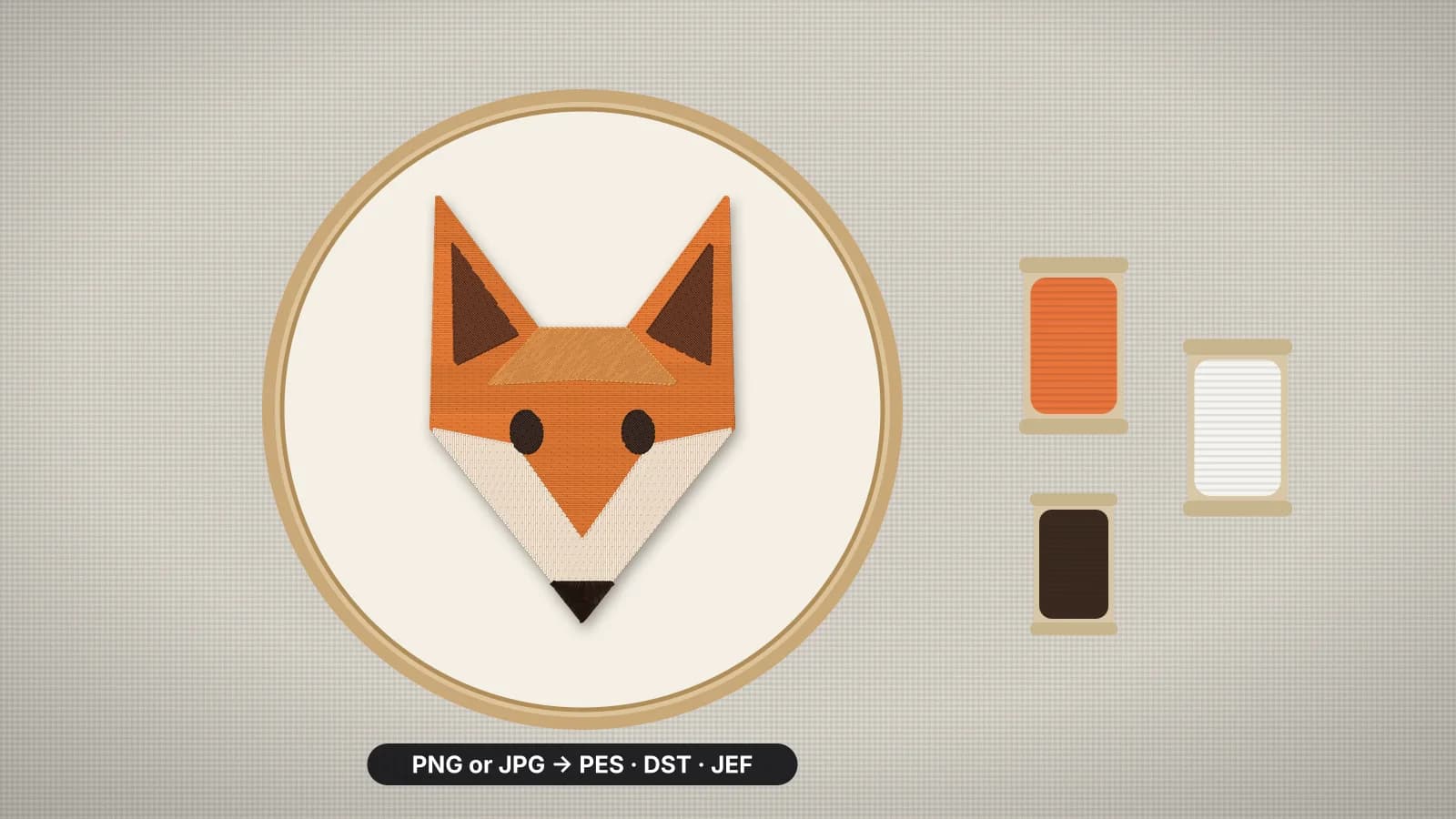
An image and an embroidery file can look alike on screen, but they're different things. A JPG or PNG is a grid of colored pixels. A DST, PES or JEF file is a list of needle positions, jumps, trims and color changes that a machine follows one stitch at a time. Renaming a picture to .pes changes nothing inside it, so the image has to be digitized: turned into stitches.
This guide walks through the conversion from picture to first sew-out. The Embrizo digitizer does the digitizing in your browser, and each format has its own page, such as image to PES for Brother and Baby Lock, image to JEF for Janome or PNG to DST for commercial machines.
Why a picture can't just be saved as PES
| Compared | Image file (JPG, PNG, SVG) | Embroidery file (DST, PES, JEF) |
|---|---|---|
| What it stores | Pixels, or vector shapes, and their colors | Needle positions, jumps, trims and color changes |
| Colors | Millions of shades, gradients and blends | One thread per color block; DST and EXP store no colors at all |
| Resizing | Vectors scale freely, and large PNGs scale well | Safe within about 10–20%; beyond that, digitize the artwork again |
| Made by | Design software, cameras and scanners | Digitizing: software, a person, or both |
| Opens in | Any computer or phone | Embroidery machines, embroidery software and file viewers |
So converting an image really means digitizing it. For every shape, someone or something has to decide the stitch type, the stitch direction, the density, what goes underneath and the order everything sews in. The glossary entries on digitizing and auto-digitizing explain the terms, and the file formats guide covers what's inside each format.
Step 1: Prepare the image
The cleaner the picture, the cleaner the stitches. Logos, lettering, clip art, icons and flat illustrations with clear shapes and solid colors convert best. Photos work too, but they're simplified into a few flat thread colors.
| Image | How it converts | Tip |
|---|---|---|
| SVG vector | The crispest result: rendered at high resolution, so curves and lettering stay smooth at any size | Convert text to outlines before exporting; see SVG to DST |
| PNG | Flat colors separate cleanly, and a transparent background is left unstitched | Export at least 1,000 px across; see PNG to PES |
| JPG | Works well once compression noise is cleaned up; the digitizer smooths speckles and color fringes | Use the highest-quality copy you have; see JPG to DST |
| Photo | Simplified into a few flat thread colors | Pick a simple, high-contrast photo and cap the colors; see the photo guide |
- Remove what thread can't sew: gradients, drop shadows, glows and textures. Thread can't blend colors.
- Thicken thin lines. A line needs to be at least about 0.5 mm wide at the final size to sew as more than a single running stitch.
- Crop and clear the background. The logo background remover cuts a logo out of a white or solid background, and the image color reducer flattens a picture to a few thread colors.
- Use artwork you own or have permission to stitch. The copyright guide explains why that matters for brand logos and characters.
Run the picture through the embroidery image checker first. It flags fine detail, too many colors and low resolution before you digitize, and the artwork guide covers each fix.
Try it with your own design
Sign up free, upload an image and get a stitch preview in under a minute.
Drop your image here
PNG, JPG, WebP or SVG · stays on your device
Step 2: Decide the stitched size
Digitize at the size you'll sew. Detail that reads at 10 in wide disappears at 3 in, and a finished stitch file can only be scaled by about 10–20% before its density goes wrong, so this decision comes before the stitches. Typical sizes:
| Placement | Typical design size | Hoop |
|---|---|---|
| Left chest | 3–4 in (75–100 mm) wide, up to about 3 in tall | 4×4 in |
| Cap front | 4–5 in (100–125 mm) wide, up to about 2–2.25 in (50–57 mm) tall | A cap frame, or a flat hoop for unstructured caps |
| Center chest | 4–8 in (100–200 mm) wide | 5×7 in or larger |
| Tote bag | 5–10 in (125–250 mm) wide | 5×7 in up to 8×12 in |
| Full back | 10–12 in (250–300 mm) wide | An 8×12 in hoop turned sideways for smaller backs, or a larger field |
In the digitizer, type the width or height, or click a hoop preset (4×4, 5×7, 6×10, 8×8 or 8×12 in) to fit the design with a margin; it handles anything from about 1 cm to 40 cm. Then check the smallest lettering: capitals under about 5 mm tall stop reading cleanly. The hoop size calculator shows which hoops a size fits.
Step 3: Cut the colors down to threads
Every color in the image becomes a thread, and on a single-needle home machine every thread is a stop to rethread. Most logos look best with two to six colors. Merge shades that are nearly the same, and drop the in-between colors that only appear along soft edges.
- Set the number of colors in the digitizer, or merge one color into another in the color list.
- Match each color to a real thread. The digitizer matches colors to the 64-color Brother chart or the 78-color Janome chart, or keeps the exact image colors. Brand colors rarely match a thread exactly; the thread color matching guide explains how to choose.
- Check the background. A white or solid background is removed automatically. Gaps inside the design that match it are left unstitched, so the fabric shows through; switch them on if your fabric is a different color.
The design check warns when a design has more than 12 colors. The thread color chart lists Brother and Janome codes and matches colors between brands.
Step 4: Digitize it, automatically or by hand
| Route | How it works | Time | Best for |
|---|---|---|---|
| Automatic (auto-digitizing) | Software reads the shapes and chooses stitch types, density, underlay and sewing order | Seconds to minutes | Logos, lettering, clip art, icons and drawings with clear shapes |
| By hand, in desktop software | You set every shape, stitch angle and the sewing order yourself | From minutes to hours per design, plus learning time | Detailed crests, tiny lettering and special techniques |
| A digitizing service | A professional digitizer makes the file for you | Often a day or more | Complex artwork, fine lettering on structured caps, 3D puff and appliqué |
An automatic digitizer such as Embrizo makes the same decisions a person would, shape by shape. Narrow shapes such as lettering and borders get satin up to 6.5 mm wide, larger areas get tatami fill with rows about 0.4 mm apart, and lines thinner than about 0.75 mm become a running or bean stitch. It adds underlay and pull compensation, overlaps neighboring colors by 0.3 mm so no gaps open, and orders the stitching to keep trims down. The fabric preset (woven, knit, stretch, fleece or leather) tunes density, underlay and pull compensation for what you're stitching on.
You can override the stitch type of any color and change the fill density, fill angle, satin width and underlay. Some jobs still need a specialist: Embrizo doesn't make appliqué sequences, 3D puff, free-standing lace or designs split for several hoopings. The service comparison sets the options side by side, and the satin vs fill guide explains the stitch types.
Step 5: Save it in your machine's format
Embroidery formats are brand specific, so save the one your machine reads. Each has its own converter page with tips:
| Machine | Format | Converter page |
|---|---|---|
| Brother, Baby Lock | PES (PEC for some older Brother models) | Image to PES |
| Janome, Elna | JEF | Image to JEF |
| Husqvarna Viking, Pfaff | VP3 | Image to VP3 |
| Bernina, Melco | EXP | Image to EXP |
| Singer | XXX on Futura models and the Legacy SE300 | Image to XXX |
| Tajima, Ricoma and most commercial machines | DST (U01 for Barudan, TBF for newer Tajima) | Image to DST |
DST and EXP store no thread colors, so keep the color sheet that comes with the download and thread from it. Not sure what your model reads? The machine compatibility checker checks a design against it, and the transfer guide covers getting the file onto the machine. Digitizing and previewing are free with your account; downloading the file, in one format or as a ZIP with all of them, needs a plan, from $8 a month billed yearly.
Step 6: Check the preview and test-sew
- Read the design check. It flags details under about 0.8 mm, lettering under about 5 mm, designs that are very small or larger than an 8×12 in field, more than 12 colors and high stitch counts.
- Pick the preview fabric color closest to your fabric, and watch the design sew out stitch by stitch to check the order.
- Look at the stitch count and sew time. A count far above similar designs usually means a fill denser than it needs to be; the stitch count chart gives typical counts by size.
- Sew a test on a scrap of the same fabric with the same stabilizer. The stabilizer finder suggests a backing, topping and needle.
- Compare the sew-out with the preview, change one thing at a time and test again. The problems and fixes guide explains what each fault means.
Already have a stitch file from someone else? Open it in the embroidery file viewer to check its size, colors and stitch count, change its format with the file converter, or rotate, mirror, resize and recolor it in the file editor, instead of digitizing it again.