 Free toolMachine compatibility checkerPick your machine and drop a file: see if it reads the format and fits the hoop, and how to fix it if not.Open the tool
Bernina's embroidery machines, from the 5 Series to the 990, stitch from EXP files on a USB stick. Two things trip people up: Bernina's software saves its working designs as ART files, which the machines don't open, and the thread colors live in a separate file next to the EXP. bernette, Bernina's second brand, has rules of its own.
This guide covers the files Bernina machines read, loading from a stick, hoop sizes, Wi-Fi transfer and the Stitchout app, bernette models and what to check when a design won't show. Facts come from Bernina's manuals and brochures and the Bernina machines page.
Which file formats does a Bernina machine read?
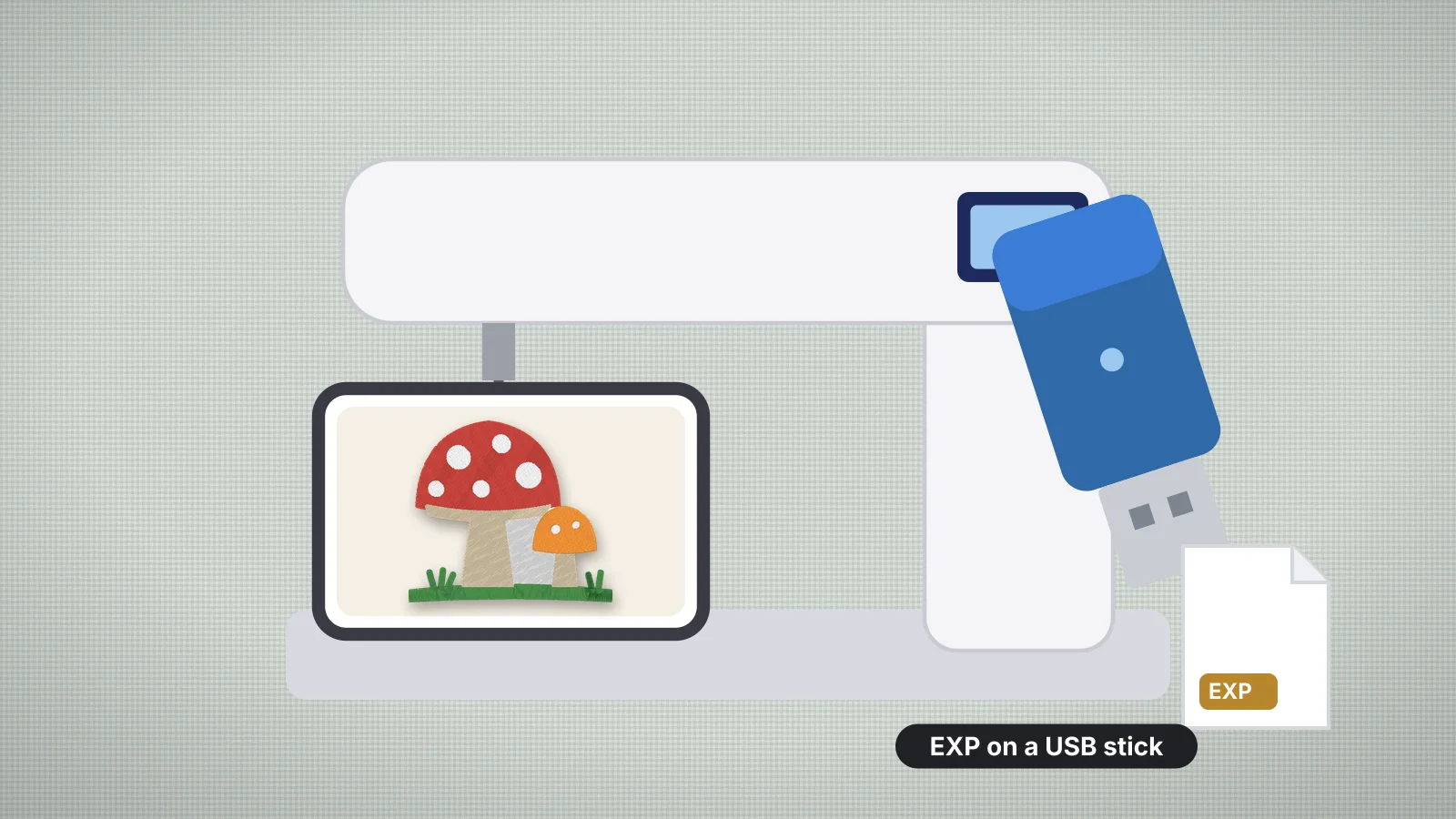
Bernina machines are built around EXP. The 790 PRO and 990 manuals say the machine reads designs exported from BERNINA Embroidery Software as EXP files, and that a BMP preview and an INF file with the thread colors are created alongside. Without the INF file, the design shows in default colors, which you can change in the editing functions.
| File | What it holds | Does the machine read it? |
|---|---|---|
| .EXP | Stitches, jumps, trims and color changes | Yes, on every current Bernina embroidery machine |
| .INF | The thread colors for the EXP of the same name | Yes, next to the EXP |
| .BMP | A preview picture of the design | Yes, next to the EXP |
| .ART | BERNINA Embroidery Software's working file, with objects you can still edit | No: export the design as EXP from the software |
| DST, PES, PEC, JEF, SEW, PCS, XXX | Other brands' stitch formats | Yes, on current 5, 7, 8 and 9 Series models |
Bernina adds a caution in its manuals: it can't guarantee that designs not created or converted with BERNINA Embroidery Software will read and sew correctly, so test a design from elsewhere on scrap first. The 790 PRO also reads BQM quilt designs, and the 990 reads several quilting formats.
How to load a design from a USB stick
- Use a FAT32 stick. If the machine doesn't recognize a stick, Bernina's manuals point you to a BERNINA USB stick, which Bernina sells as an optional accessory.
- Copy the .exp, .inf and .bmp files together, with the same name, in the same folder. Folders are fine: the machine's selection area opens them and a navigation bar shows the path.
- Insert the stick and switch to embroidery mode. On a 790 PRO, tap the File tab, then the Loading the Embroidery Design icon, then the USB stick in the selection area.
- Choose the design. The machine shows the recommended hoop for it and marks the hoop that's attached and recognized.
- Check the colors in the Colors tab, where you can change each color and its thread brand, or turn the color wheel to shift all colors at once.
Resize on the machine only a little. Bernina's manuals say a design can be enlarged or reduced by up to 20 percent without loss of quality; for a bigger change, make a new file at the size you need.
Unzip downloads on your computer before you copy them; the machine can't open a ZIP. A Mac can leave hidden files starting with ._ next to your designs, which you can ignore or delete. Designs you sew often can be saved from the stick into the machine's Personal Folder, so they're there without the stick.
Try it with your own design
Sign up free, upload an image and get a stitch preview in under a minute.
Drop your image here
PNG, JPG, SVG, PDF or AI · stays on your device
Not sure what to expect? See real examples or how it works.
Bernina hoop sizes and the largest designs
| Hoop | Embroidery field | Machines |
|---|---|---|
| Small | 72 × 50 mm | Included with the 700 E, 790 PRO, 880 PLUS and 990 |
| Medium | 100 × 130 mm | Included with embroidery modules M and L |
| Large Oval | 145 × 255 mm (5.7 × 10 in) | Included with most models; the everyday large hoop |
| Mega | 400 × 150 mm | The full field of the 5 Series (500 E, 535, 570 QE E, 590); not in the standard kit |
| Maxi | 400 × 210 mm | The full field of the 700 E, 770 QE PLUS and 790 PRO; sold separately |
| Jumbo | 400 × 260 mm | The full field of the 880 PLUS; not included |
| Giant | 410 × 305 mm | Included with the 990 |
Most designs fit the Large Oval's 145 × 255 mm. Leave a few millimeters at each edge, and check any size with the hoop size calculator. A design bigger than your largest hoop can be split into several hoopings with the design splitter. Check that your machine has its embroidery module, too: it's optional on the B 535 and the 570 QE and included with the 535 E and 570 QE E, and the 770 QE PLUS module is also an option.
Wi-Fi transfer and the BERNINA Stitchout app
- Built-in Wi-Fi. The 790 PRO and 990 connect to a 2.4 GHz network from the machine's settings. The 790 PRO manual says this lets you transfer designs from BERNINA's embroidery software or follow the embroidery on the Stitchout app.
- The BERNINA WiFi Device. This accessory plugs into the USB port of most Bernina embroidery machines with a USB socket and receives designs that BERNINA Embroidery Software 9 sends over your home network. Bernina says it's for data transfer only and doesn't work with the Stitchout app.
- BERNINA Embroidery Software 9 is a Windows program for Windows 10 or 11 (64-bit), sold in Creator and DesignerPlus levels, and it's what sends designs over Wi-Fi. Without it, the USB stick is the route.
- The Stitchout app for iPhone, iPad and Android monitors a Wi-Fi machine: how far the design has got, which color is next, how long it will take, and a message when the thread breaks or the embroidery is finished. It doesn't load designs.
The embroidery machines with Wi-Fi list shows which models across brands can receive designs wirelessly.
bernette machines: a separate format list
bernette is Bernina's second brand, and its machines read their own lists of formats. EXP is the one format every bernette embroidery machine reads.
| Model | Formats | Largest field |
|---|---|---|
| bernette 70 DECO | EXP, DST, PES, PEC, JEF, VP3, VIP and HUS | 260 × 160 mm |
| bernette 79 | EXP, DST, PES, PEC, JEF, VP3, VIP and HUS | 260 × 160 mm |
| bernette Chicago 7 | EXP only, with its .inf file next to it | 110 × 170 mm |
On a 70 DECO or 79, tap Selection, insert the stick, tap USB Stick and choose the design. The Chicago 7 is stricter: its manual asks for a USB 2.0 stick of 32 GB or less and file names of up to 17 characters. bernette's manuals recommend loading designs from other sources through BERNINA Embroidery Software, but a plain EXP still opens, in default colors. The 70 DECO and 79 detect the attached hoop, and bernette's manual says the smallest hoop that fits the design gives the best result, because the fabric is held tighter. The bernette machines page has the hoops.
What to check when a Bernina design won't show
| Problem | Likely cause | Fix |
|---|---|---|
| The design shows in odd colors | The .inf file is missing | Copy it next to the .exp, or set the colors in the Colors tab from your color sheet |
| An ART file isn't listed | ART is the software's working format | Export the design as EXP from BERNINA Embroidery Software |
| The stick isn't recognized | Formatted as exFAT or NTFS, or a stick the machine doesn't like | Reformat it as FAT32, or try a BERNINA USB stick |
| The design won't fit | It's bigger than the attached hoop | Attach a bigger hoop, or make a new file at the right size |
| A Chicago 7 doesn't list the design | It isn't EXP, its name is too long, or the stick is over 32 GB | Use EXP, shorten the name to 17 characters or fewer and use a smaller stick |
| Nothing opens at all | The design is still in its ZIP | Unzip it and copy the .exp with its .inf and .bmp |
| A design from another program sews oddly | Bernina only guarantees designs made or converted with its own software | Convert it to EXP, or open and re-export it in BERNINA Embroidery Software, and test on scrap |
Embroidery file won't open on machine goes through every cause, and the machine compatibility checker tells you whether your model reads a file and whether it fits.
Practice on a free design
167 ready-to-sew designs in every machine format, free with an account.
Making EXP files for a Bernina with Embrizo
To make an EXP from a logo or artwork, upload it to the Embrizo digitizer and choose EXP. It writes the .exp stitch file only, without an .inf or .bmp, so the machine shows default colors: set them in the Colors tab, or thread up from the TXT color sheet, which lists every color in sewing order.
- Want colors on screen? Current Bernina models also read PES, which carries Brother palette colors. Save a PES copy and test it if you'd rather see the colors on the machine.
- Set the final size in the digitizer, since resizing on the machine works best within 20 percent. For the Large Oval hoop, type a size such as 140 × 250 mm.
- Choose the fabric preset so density, underlay and pull compensation suit the garment.
- Designs you already have convert in the browser: PES to EXP, DST to EXP, or a whole folder with the batch converter.
It doesn't write ART files or send designs to the WiFi Device, so copy the file to your stick. Digitizing and previews are free with an account; downloading the EXP needs a plan.