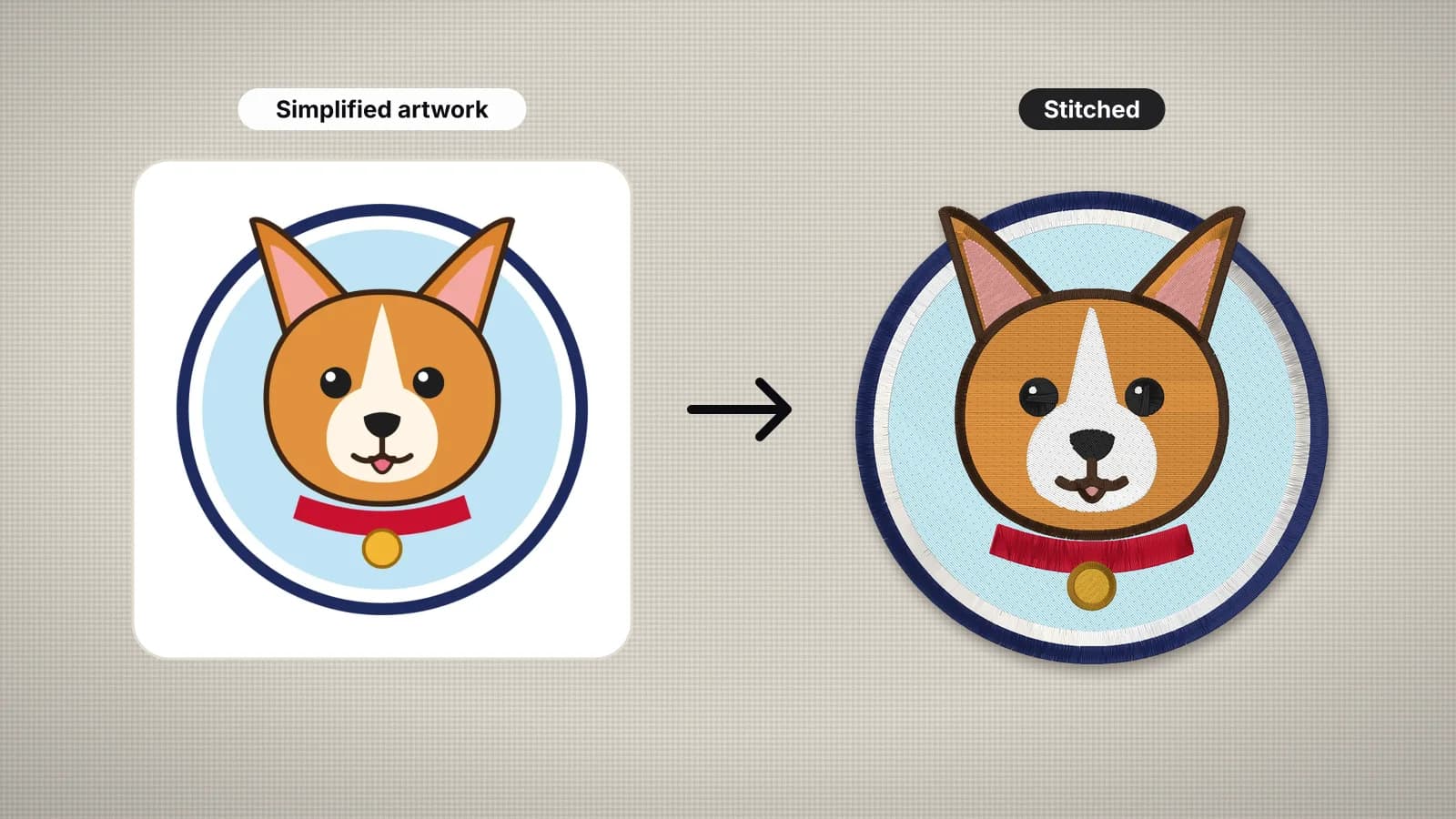
Turning a photo into embroidery is one of the most-asked-for jobs, especially for pets, people and favorite places. It can work well, but only if you know what thread can and can't do. Thread lays down solid color in stitches: it can't blend, fade or shade the way pixels do. So a photo has to become a handful of flat color areas before it can be stitched.
This guide explains what happens to a photo in an automatic digitizer, which photos survive that and which don't, how to simplify a photo yourself, how big to stitch it, and how to approach pet portraits.
What happens when a photo becomes embroidery
An automatic digitizer such as Embrizo works in a few steps. It reduces the photo to the number of thread colors you choose, from 2 to 15. It removes a plain background, cleans up specks and compression noise, and turns each color area into stitches by its width: satin for narrow shapes up to about 6.5 mm, tatami fill for wider areas, and running stitch for lines thinner than about 0.75 mm. Small details up to 2.5 mm wide are sewn on top of the fill beneath them, so they keep crisp edges.
The result looks like a bold screen print or patch, not a photograph. Large shapes, strong outlines and main colors come through. Gradients become a few hard bands of color, and fine texture such as fur, hair strands and eyelashes is simplified away. That's not a fault of one program: it's what thread does. Photo-realistic thread painting exists, but it's usually digitized by hand, layer by layer, by specialists.
Photos that work, and photos that don't
| Photo | How it stitches | Verdict |
|---|---|---|
| A pet or person against a plain background, strong contrast | A clear subject that reads in a few colors | Good |
| A silhouette or strong shape | Clean edges and bold areas | Very good |
| A landscape with big color areas, such as a sunset or mountains | Bands of color that suit fills | Good |
| A close-up portrait of a face | Readable only when stitched large, with simplified shading | Fair; needs size |
| A busy background or a group photo | Background shapes become stitches; small faces disappear | Poor unless cropped |
| Low light, blur, or a small screenshot | Muddy colors and ragged edges | Poor |
| A white pet on a white background, or a dark one on dark | Not enough contrast to separate the subject | Poor |
The best predictor is simple: if the photo still reads when you squint at it, it will probably read in thread. If the subject only works because of fine detail or subtle shading, it won't. The embroidery image checker looks at colors, fine detail and resolution and tells you what to fix before you digitize.
Try it with your own design
Sign up free, upload an image and get a stitch preview in under a minute.
Drop your image here
PNG, JPG, WebP or SVG · stays on your device
Simplifying a photo to flat colors
You'll get a cleaner result if you do some of the simplifying yourself rather than leaving it all to the digitizer:
- Crop tight around the subject. Every bit of background left in becomes stitches or noise.
- Remove the background, or replace it with a plain color. A transparent PNG is ideal.
- Raise the contrast a little, so the subject's main areas separate clearly.
- Choose four to six colors to start, then raise or lower the count. Merge shades that are nearly the same.
- Keep the key features dark and bold, such as eyes, nose and outline, and let the rest go flat.
- Or trace it. For the cleanest result, trace the photo into a simple illustration with flat colors and bold outlines, then digitize that.
The artwork preparation guide covers resolution and line widths in more detail. Aim for an image 1,000–2,000 px across: larger doesn't hurt, but smaller blurs the edges.
Pet portraits
Pets are the most popular photo subject, and they show the trade-off clearly. A photo of a dog has hundreds of shades of fur; thread has a handful of colors. Stitched straight from a photo, a pet comes out as a bold, poster-like design. Stitched from a simple illustration of the same pet, it comes out crisp and recognizable.
- Start from an illustration where you can: trace the photo, or ask an artist for a simple cartoon with flat colors.
- Outline the face and ears in a dark color, so the portrait reads from a distance.
- Use about six to ten colors for an illustrated portrait, merging similar fur shades.
- Size it for the item: about 2.5–3.5 in (65–90 mm) for a left chest or cap, 5–7 in (125–180 mm) for a tote or pillow, and 8–10 in (200–250 mm) for a hoodie front.
- Add the name in the artwork, or as separate lettering from the text to embroidery tool.
The pet portrait embroidery file page is set up for exactly this. The free cat face design shows the style that stitches well, and its colors can be changed in the digitizer to match a real cat.
How big to stitch a photo
Detail needs space. The same photo that's a recognizable portrait at 6 in can be an unreadable blob at 2 in, because features shrink below the width thread can draw.
| Use | Size | Notes |
|---|---|---|
| Pet or person portrait | 4×4 in (100 mm) or larger | Faces need at least about 80 mm to read well |
| Patch | 3–4 in (75–100 mm) | Choose a simple subject with bold shapes |
| Tote or pillow | A 6×10 in field or larger | Room for more colors and detail |
| Hoodie or sweatshirt front | 8–10 in (200–250 mm) wide | Keep it lighter, with fabric showing in places |
Photo designs tend to cover their whole area with stitches, so stitch counts are high. A fully filled 100 × 100 mm design comes to about 11,000 stitches with typical settings, and a large design can be several times that. On T-shirts and hoodies, that makes a stiff patch, so let the fabric show in the background. The stitch count calculator estimates any size.
Fabric and backing for photo designs
- Canvas, twill and cotton such as totes and pillow covers are the most forgiving: they take dense designs without puckering. Use the woven preset and a medium tear-away, or two layers for dense designs.
- T-shirts and hoodies need cut-away underneath and the knit or fleece preset. Fleece also needs a water-soluble topping on top.
- Thread color against fabric: light thread on dark fabric shows gaps more, so a dark fabric may need a slightly denser fill.
The stabilizer guide has a fabric-by-fabric chart, and the density guide explains how coverage and stiffness trade off.
Digitizing a photo, step by step
- Crop and clean up the photo, or trace it into an illustration.
- Open the photo to embroidery file page or the digitizer, sign in with your free account and add the image. It's processed in your browser.
- Set the colors, starting with four to six, and merge any that look the same in thread.
- Set the size or click a hoop preset, and pick the fabric preset for the item.
- Compare the stitch preview and the sew-out simulation with the photo. If a face or feature has vanished, go bigger or simplify the image.
- Read the design check: it flags very fine detail, more than 12 colors and high stitch counts.
- Download your machine's format and test on scrap. Digitizing and previewing are free with your account; downloads need a plan.
If you're making the design for someone else, send them the stitch preview before you sew. It sets expectations about the flat-color look far better than the original photo does.