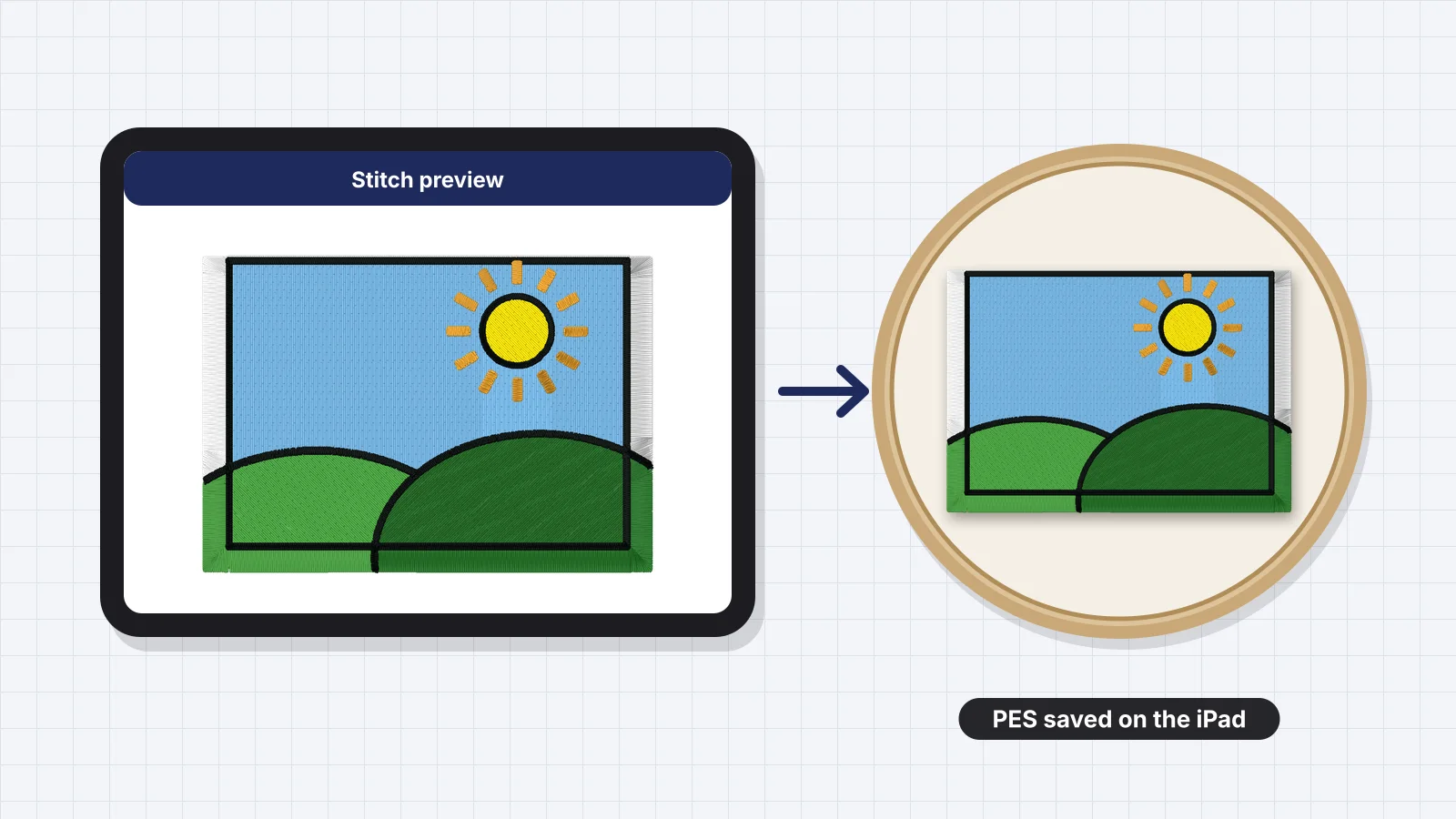
For years the iPad was where embroiderers drew designs, not where they digitized them, because programs such as Hatch, Wilcom EmbroideryStudio and Brother PE-DESIGN run on Windows. That has changed. A browser-based digitizer runs in Safari with nothing to install, and Brother's Artspira app runs on iPad for Brother's wireless machines.
This guide covers the options, the workflow from a drawing or photo to a machine file, and the step that trips most people up: getting the file from the iPad to the machine. The same steps work on an iPhone or an Android phone, with a few differences covered near the end.
Your options on an iPad
| Option | What it does | Files you can keep | Machines |
|---|---|---|---|
| Embrizo in Safari | Auto-digitizes PNG, JPG, WebP and SVG images into satin, fill and running stitch, with underlay and a sew-out preview | Yes: DST, PES, JEF, EXP, VP3, XXX, PEC, U01 and TBF | Any machine that reads one of those formats |
| Brother Artspira | Ready-made designs, basic editing and drawing; Image to Embroidery is in Artspira+, at $12.99 a month or $119.99 a year (US) | No: Brother says designs can't be taken out of the app | Compatible Brother wireless machines |
| Wilcom Truesizer, in a browser | Opens existing designs to view, resize, recolor and export; it doesn't turn images into stitches | Yes, from designs you already have | Depends on the format you export |
| Desktop programs such as Hatch, PE-DESIGN or Embrilliance | Full digitizing or editing on a computer | Yes | They don't run on an iPad |
For turning your own artwork into a machine file you can keep, Embrizo is the best option on an iPad: it works for every major machine brand, and designs are saved to your account so you can carry on at a computer. Artspira suits Brother wireless owners who want to design and send from one app; the Artspira alternative page covers its limits. The best embroidery software for iPad list compares every option.
What you need
- An iPad with a current version of Safari. Chrome and other browsers work too. Embrizo runs in the browser, so there's nothing to install.
- An Embrizo account. A free account digitizes and previews unlimited images; saving machine files needs a plan.
- Your artwork: a Procreate drawing, a logo as a PNG or SVG, or a clear photo.
- A way to move files: a USB-C flash drive for iPads with USB-C, or Apple's Lightning to USB Camera Adapter for older iPads with a Lightning port. Every iPad Apple currently sells has USB-C.
- Optional extras: an Apple Pencil for drawing, and a keyboard with a trackpad for fine adjustments.
Try it with your own design
Sign up free, upload an image and get a stitch preview in under a minute.
Drop your image here
PNG, JPG, SVG, PDF or AI · stays on your device
Not sure what to expect? See real examples or how it works.
Step 1: Draw or prepare the artwork
Clean artwork makes clean stitches, wherever it comes from. Flat colors, solid edges and lines thick enough to stitch matter more than fine detail.
- Procreate and other drawing apps: draw at the final stitch size, use a solid inking brush, fill shapes with flat color and export a PNG with the background hidden. The Procreate guide covers canvas sizes, brushes and line weights, and Procreate to embroidery file sums up the route.
- Photos: pick a subject with clear shapes and strong contrast, crop tight and avoid busy backgrounds. Pets, simple objects and evenly lit portraits work best; see iPhone photo to embroidery file.
- Logos: use the largest PNG or SVG you have. A screenshot of a small logo loses the detail the digitizer needs.
| Check | Aim for | Why |
|---|---|---|
| Image size | At least 2,000 px on the long side, or 300 dpi at the final size | Small images blur, and fine details merge |
| Lines | 1 mm or more at the final size for a satin line | Lines under about 0.5 mm sew as a single running stitch |
| Text | Capital letters at least 5 mm (0.2 in) tall | Smaller lettering fills in and becomes hard to read |
| Colors | 2–8 flat colors | Each color is a thread change, and shading splits into extra colors |
| Background | Transparent or one plain color | It's removed automatically and left unstitched |
Step 2: Upload and digitize in Safari
- Open Embrizo's digitizer in Safari and sign in.
- Tap to upload and pick Photo Library, Take Photo or Choose File. Choose File opens the Files app, including iCloud Drive and anything you saved from Procreate.
- The background is removed and the colors separated automatically. Check the color list: merge colors that should be one thread and switch off any you don't want stitched.
- Set the size in millimeters or inches, or fit the design to a 4 × 4, 5 × 7, 6 × 10, 8 × 8 or 8 × 12 in hoop.
- Choose the fabric preset closest to your item, such as woven, knit, or fleece and towels. It sets density, pull compensation and underlay to suit.
- Pinch to zoom on the stitch preview, then play the sew-out simulation and check the stitch count and thread list.
- Adjust if needed: number of colors, smallest detail, fill or satin density, underlay, and fill, satin or outline for each color.
Hold the iPad in landscape to see the preview and the settings side by side. If Safari reloads a tab you left in the background, don't start over: designs are saved to your account and reopen on any device, including a computer.
Step 3: Save the file in your machine's format
| Machine brand | Format to save |
|---|---|
| Brother, Baby Lock | PES |
| Janome, Elna | JEF |
| BERNINA | EXP |
| Husqvarna Viking, PFAFF | VP3 |
| SINGER | XXX |
| Tajima and most commercial multi-needle machines | DST |
Safari saves downloads to the Downloads folder in the Files app, in iCloud Drive unless you've changed it in Safari's download settings. The file shows a plain icon because iPadOS doesn't recognize embroidery formats; that's normal. If a download arrives as a ZIP, tap it once in Files to expand it, because machines can't read files inside a ZIP. To double-check a file, open it in Embrizo's embroidery file viewer.
Step 4: Get the file onto your machine
| Route | What you need | How it works |
|---|---|---|
| USB-C flash drive | An iPad with USB-C and a small USB-C stick, or a dual stick with USB-C and USB-A ends | Plug it in, find the design in Files, long-press it and choose Copy, open the drive under Locations and paste. Wait for the copy to finish before unplugging |
| Adapter for a Lightning iPad | Apple's Lightning to USB Camera Adapter, or the USB 3 version with a charging port for drives that need more power | The stick appears in Files under Locations; copy the design as above |
| Through a computer | A Mac for AirDrop, or any computer with iCloud Drive or email | AirDrop the file to a Mac, or open it from iCloud Drive on a PC, then copy it to the machine's USB stick there |
| Wireless machine and the maker's app | A compatible Wi-Fi model | Brother's Artspira sends designs to compatible Brother wireless machines, and some Janome models take designs from Janome's apps. Whether an app accepts files made elsewhere varies, so check its help pages |
- Use a small stick formatted as FAT32. Many machines, especially older ones, ignore exFAT or NTFS sticks and large drives. Format the stick once on a computer as FAT32, or MS-DOS (FAT) on a Mac. Some recent versions of iPadOS can also erase a drive from the Files app; if yours offers it, pick MS-DOS (FAT).
- Copy to the top level. Many machines only look at files in the root of the stick, not inside folders.
- Keep names short and plain, such as rose-5x7.pes, without emoji or special characters.
The guide to transferring designs to your machine covers each brand's screens and the usual fixes.
Digitizing on an iPhone or Android phone
The workflow is the same on a phone: open the digitizer in Safari or Chrome, upload from the photo library or files, adjust and save. The smaller screen just means more zooming. A few phone-specific points:
- iPhone 15 and later have USB-C and read USB-C flash drives in the Files app. Older iPhones need the Lightning to USB Camera Adapter.
- Most Android phones with USB-C read a USB-C stick, or a standard stick through an OTG adapter, in their files app.
- Photos straight from the camera work best taken square-on, in even daylight, with the subject filling the frame. Crop before uploading.
- Artspira also runs on iPhone (iOS 15 or later) and Android 8 or later, for compatible Brother wireless machines.
- Finish on a bigger screen if you like. Start a design on the phone and reopen it from your account on an iPad or computer to fine-tune it.
Practice on a free design
167 ready-to-sew designs in every machine format, free with an account.

Tips for touch screens and storage
- Zoom before you judge. Pinch in on the stitch preview to check small lettering, satin edges and gaps; the full view hides small problems.
- Use Split View. Put Safari beside Procreate or Files to compare the original artwork while you adjust settings.
- A trackpad helps with fine settings. Sliders such as density and pull compensation move in small steps that are easier to hit with a pointer than a fingertip.
- Machine files are small. A typical design is well under 1 MB, so storage is rarely a problem, but high-resolution photos and Procreate files are not. Keep a folder per project in Files.
- Download from iCloud before copying. A cloud icon next to a file in Files means it isn't on the iPad yet; tap it to download before copying it to a USB stick, especially before you go offline.
Keep one small USB-C stick just for embroidery, formatted as FAT32 and holding only machine files at the top level. The machine finds designs faster, and you never have to hunt through photos and documents on its small screen.