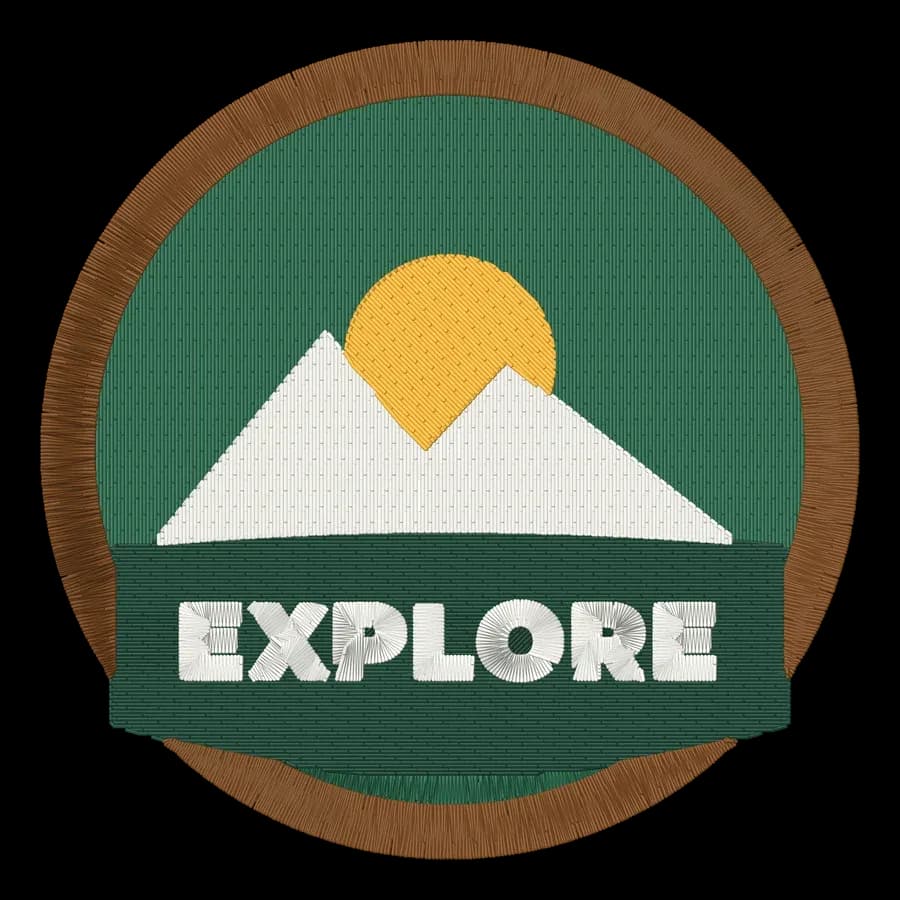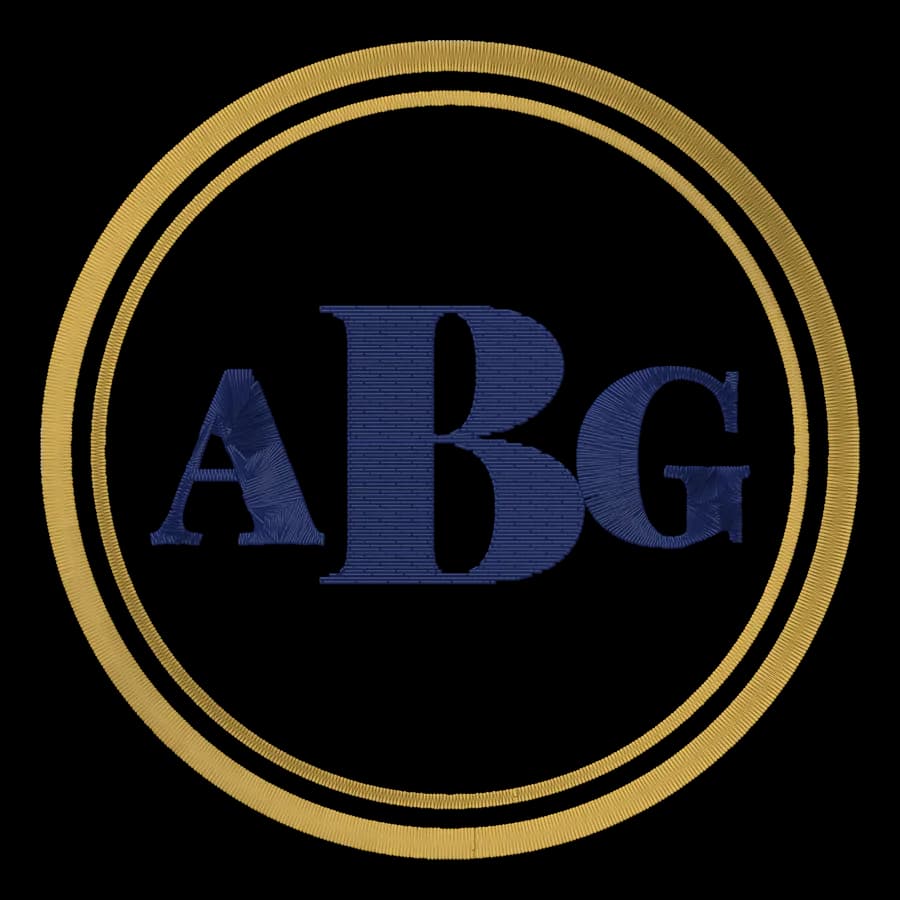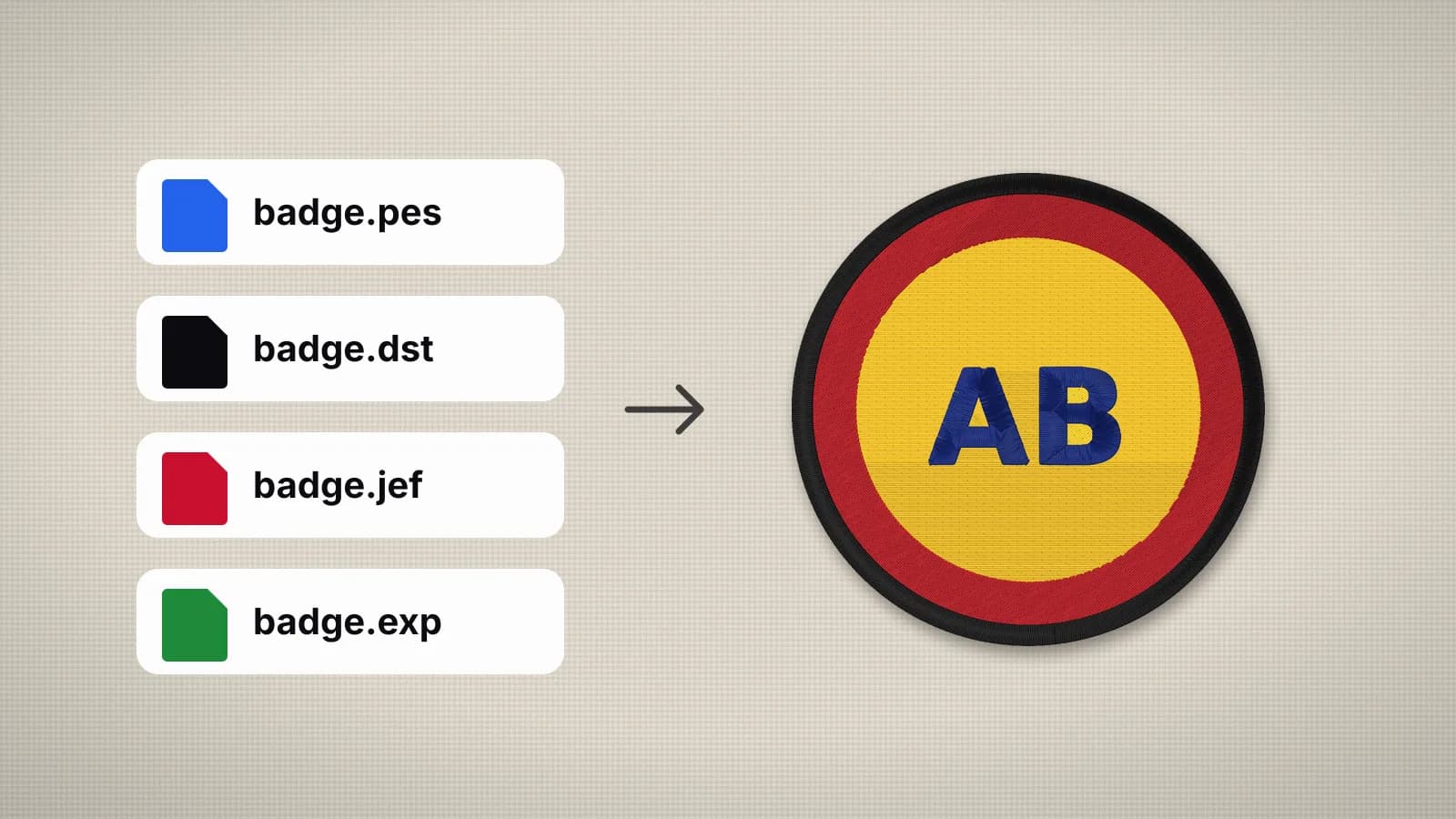
PES, DST and JEF files are machine embroidery designs. If you've bought or been sent one, you may have found that your computer won't open it: double-clicking does nothing, or the computer asks which app to use. That's normal. These files are stitch instructions for an embroidery machine, and computers don't come with a program that reads them.
You don't need to install anything to look inside one. Drop the file into the embroidery file viewer and it opens in your browser, with a stitch preview, the size, the thread colors and the stitch count. This guide explains what to check, how to convert the file if your machine needs another format, and how to get it onto the machine.
What PES, DST and JEF files are
An embroidery file isn't a picture. It's a list of needle moves, usually in steps of 0.1 mm, plus commands to jump, trim and change color. Each machine brand reads its own formats, which is why one design is often sold in several:
| Extension | Made by | Machines that read it | Stores thread colors |
|---|---|---|---|
| .pes | Brother | Brother and Baby Lock | Yes |
| .dst | Tajima | Tajima and most commercial multi-needle machines; many home machines | No |
| .jef | Janome | Janome and Elna | Yes (Janome palette) |
| .exp | Melco | Melco commercial machines; most current Bernina machines | No |
| .vp3 | Husqvarna Viking / Pfaff | Husqvarna Viking and Pfaff | Yes |
| .xxx | Singer / Compucon | Singer Futura and other Compucon-based Singer models | Yes |
| .pec | Brother | Older Brother and Baby Lock models | Palette numbers only |
| .u01 | Barudan | Barudan commercial machines | No |
| .tbf | Tajima | Some newer Tajima machines | Needle and thread info |
The embroidery file formats guide goes deeper into each one, including which to pick when a machine reads several.
Why double-clicking doesn't work
Windows and macOS have no built-in program for stitch files, so there's nothing for them to open with. A photo viewer or image editor can't help either: there are no pixels in the file, only stitches. Renaming a .dst to .jpg doesn't change what's inside.
Embroidery software reads them, and so does your machine. Brand programs, such as Brother's, Bernina's or Janome's embroidery software, open their own formats and usually several others. If you only want to see a design, check its size or pick threads, a browser viewer is quicker.
- A ZIP download? Many designs come zipped with several formats inside. Extract the ZIP first, then pick the file for your machine.
- Can't tell what the file is? Some computers hide file extensions. Turn them on to see whether you have a .pes, a .dst or something else.
- Only an EMB or ART file? Those are software working files, not machine files. Ask the seller or digitizer for your machine's format.
Try it with your own design
Sign up free, upload an image and get a stitch preview in under a minute.
Drop your image here
PNG, JPG, WebP or SVG · stays on your device
Viewing an embroidery file in your browser
- Open the viewer and drop in the file, or click to choose it. PES, DST, JEF, EXP, VP3, XXX, PEC, U01 and TBF files all open.
- The design appears as a realistic stitch preview. Zoom in to single stitches, or switch the fabric color.
- Play the sew-out simulation to see the order the colors and sections sew in.
- Read the size, stitch count, trims, thread colors and estimated sew time.
The file is read in your browser and never leaves your computer. There are format-specific pages too, with tips for each: the PES file viewer for Brother designs, the DST file viewer for commercial files and the JEF file viewer for Janome.
Save the PNG preview and the color sheet from the viewer and keep them with the design. They're the quickest way to find a file later, or to show a customer what it will look like.
What to check before you sew
| Check | What to look for | Why it matters |
|---|---|---|
| Size | Width and height in mm or inches | It has to fit your hoop with a margin, or the machine may refuse it |
| Thread colors | The color list and the order they sew in | DST and EXP store no colors, so the viewer shows placeholders |
| Stitch count | Total stitches | A guide to density, stiffness and price |
| Sew time | Estimated at 700 stitches a minute | Plan your time; add a minute or so per thread change on a single-needle machine |
| Trims | How often the design stops to trim | Lots of trims slow the machine and leave more thread ends |
| The preview itself | Gaps, very dense areas, tiny text | Problems on screen are worse in thread |
A design made for a different size is the most common problem. Stitch files don't scale well: shrinking one by more than about 10% packs the stitches too tight, and enlarging it leaves gaps. If you need a very different size, digitize the original artwork again instead.
Converting to your machine's format
If the design isn't in your machine's format, convert it. Open it in the embroidery file converter, check the preview and save it in the format your machine reads, or as a ZIP with all nine. Opening and checking a file is free; saving it in another format needs a plan.
- Every stitch is kept, exactly where it was. Long moves are split if the new format has a shorter limit.
- Colors carry over when both formats store them. Going from DST to PES there are none to carry, so set the threads before you save.
- The size doesn't change. Converting is not resizing.
Not sure which format your machine needs? PES for Brother and Baby Lock, JEF for Janome, EXP for Bernina, VP3 for Husqvarna Viking and Pfaff, XXX for the Singer Futura and DST for commercial machines. Your manual lists the formats it reads, usually in the USB or embroidery data section.
Getting the file onto your machine
Most home and commercial machines load designs from a USB stick:
- Use a small USB stick formatted as FAT32. Many machines, especially older ones, don't read large or newer sticks.
- Copy the file for your machine, such as the .pes, to the top level of the stick. Some machines don't look inside folders.
- Keep file names short and simple. Some older machines cut off long names or skip unusual characters.
- Eject the stick properly, insert it in the machine and open the design from the embroidery screen.
Some newer machines also take designs over Wi-Fi through the maker's app or software, and some older ones connect to a computer with a cable. If the machine doesn't list your file, check the extension against the manual and the design size against your hoop: machines usually hide files they can't read and refuse designs bigger than their field.