 Free previewEmbroidery file editorEdit a DST, PES or JEF file online: rotate, mirror, resize and recolor, then save it in any format.Open the tool
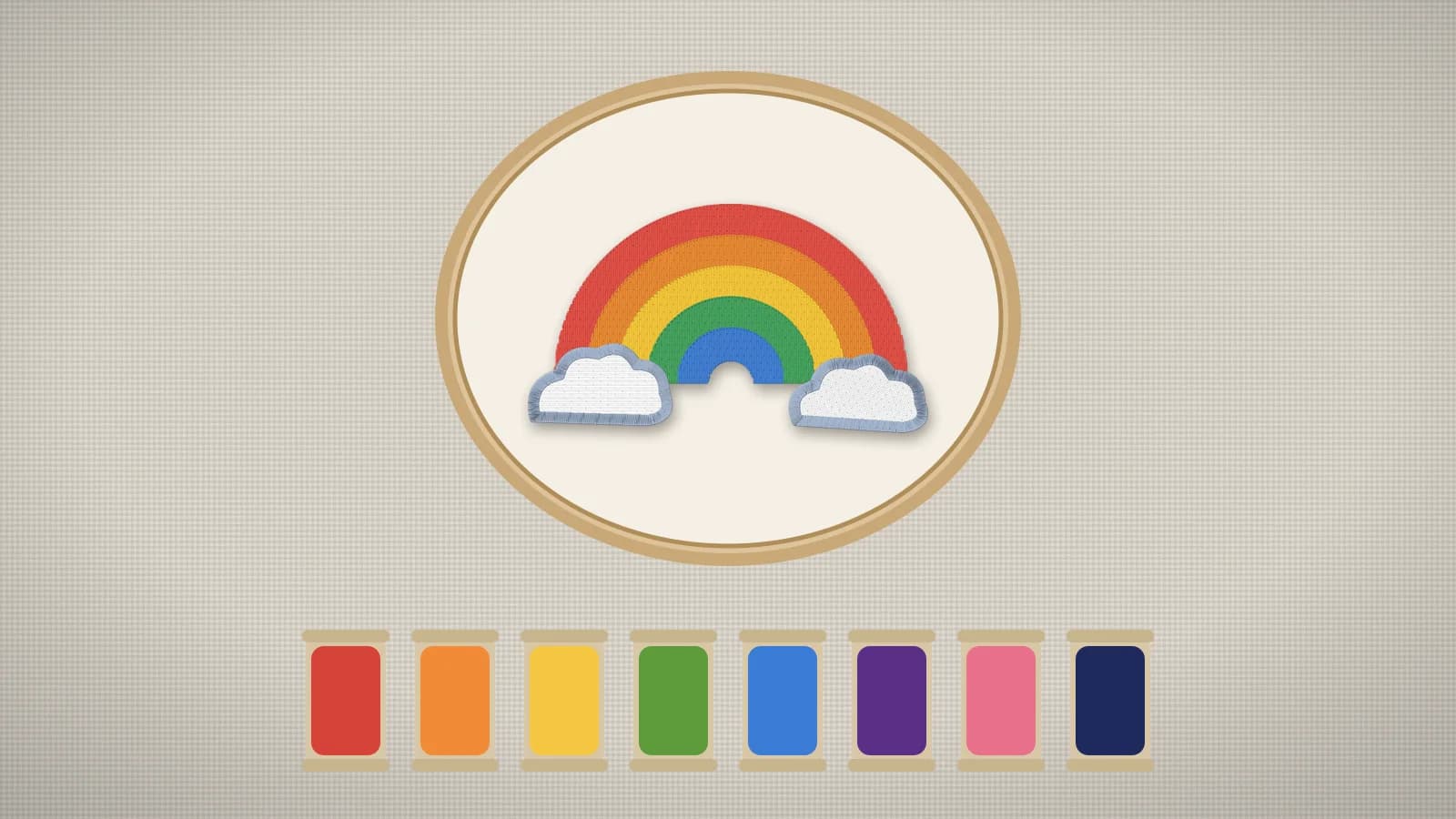
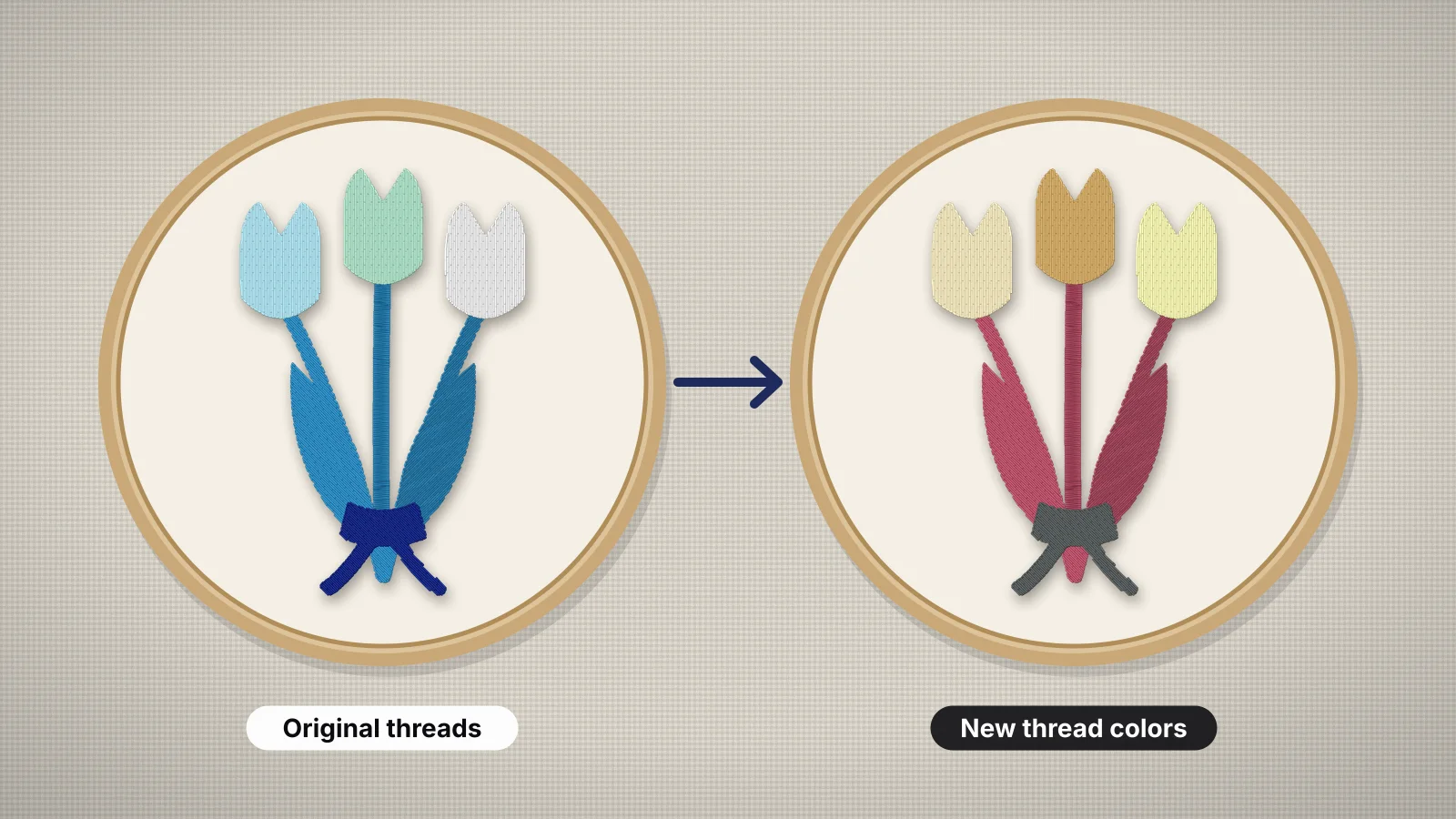
Changing thread colors is the easiest edit you can make to an embroidery design. You're not changing any stitches, only the thread assigned to each color stop, so a red-and-gold design can become navy and white in a few minutes. Where you do it, and whether the change sticks, depends on the file format.
This guide covers which formats store colors, recoloring on the machine screen, in a browser editor and in desktop software, handling DST files with a color sheet, recoloring artwork before you digitize, and picking replacement colors that sew well. To swap one thread brand for another, see converting thread colors between brands.
Which embroidery formats store thread colors?
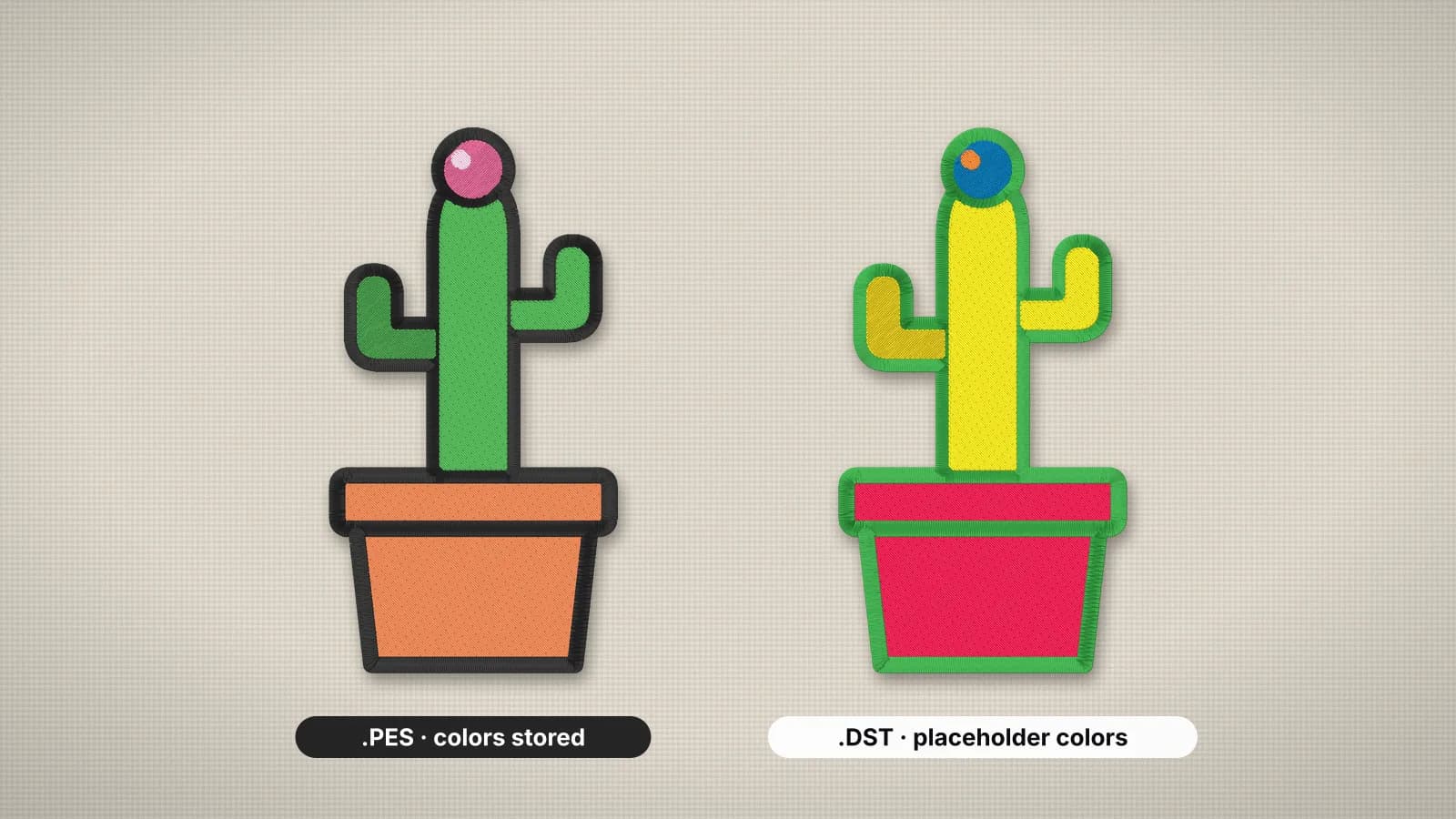
PES, JEF, VP3 and XXX store a color for each color stop; DST and EXP store only where the colors change. That decides whether a recolored file keeps its new colors:
| Format | What it stores | Recolor and save in it? |
|---|---|---|
| PES | A Brother palette color for each stop, plus a thumbnail | Yes; the machine shows the nearest Brother palette color |
| JEF | A Janome palette number for each stop | Yes; colors snap to the nearest Janome thread |
| VP3 | The exact RGB color and thread name of each stop | Yes, exactly |
| XXX | An RGB color for each color block | Yes |
| DST | Color stops only, no colors | No: the colors live on a color sheet or the machine |
| EXP | Color stops only; Bernina keeps colors in a separate .INF file | Only with an .INF; otherwise use a color sheet |
Each color stop is one thread change, and every stitch in it is sewn in that thread. If one stop covers both a leaf and a letter, they change together; to color them differently, the design has to be digitized with them in separate stops. If the same red appears in two stops, change both. The DST vs PES comparison explains the difference between the two most common formats.
Changing colors on the machine screen
Most current embroidery machines with a color screen let you change a design's thread colors before you sew:
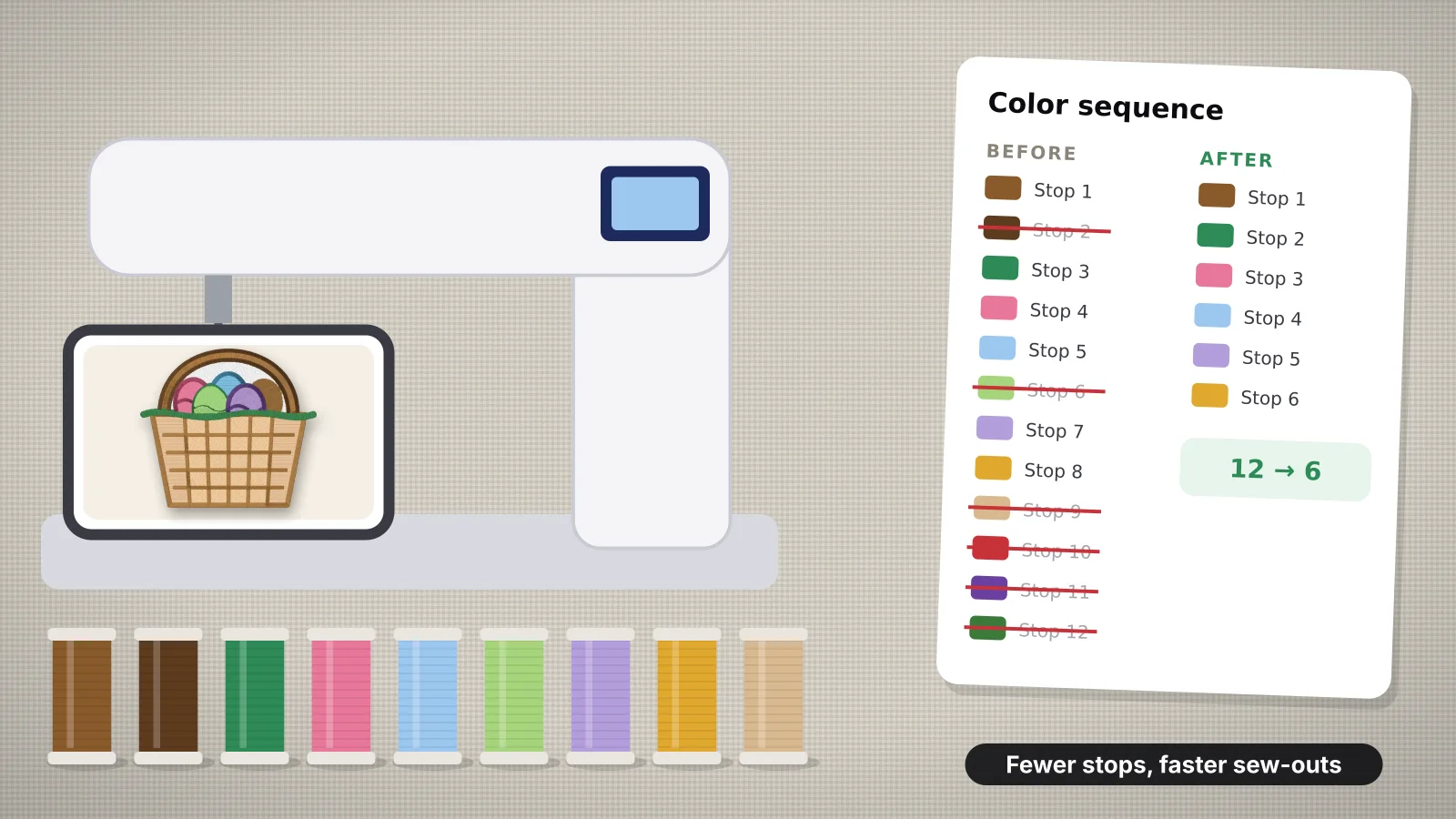
- Brother and Baby Lock. The Baby Lock Bloom guide shows the usual steps: on the editing screen, touch the thread palette key, choose the thread brand, select the color to change and pick a new one from the palette. It also describes thread color sorting, which reorders a combined design to reduce spool changes.
- Janome. The Memory Craft 550E manual describes customizing the display colors: the design color key and 12 color tiles with a shade slider let you change the color of each section on screen and give it a name.
- Bernina. The Colors tab shows every color and its thread brand, and you can change each one, or turn the color wheel to shift all colors at once.
- Husqvarna Viking and Pfaff. Thread color edit lists the color blocks; select one and touch thread color change to pick a new thread, or select several blocks at once.
On a single-needle machine the screen colors are mainly a guide: the machine stops at each color change, and whichever thread you put on is what sews. Changing them on screen still helps you see the result before you start, and you can save the recolored design to the machine's memory or a USB stick to keep it. The machine saves it in its own format; the Bloom, for example, saves edited designs as .phc files.
Lettering is a special case. The Baby Lock Bloom, for example, has a multi color key in its font editing screen that changes the thread color letter by letter, so a name can alternate colors without any software.
Try it with your own design
Sign up free, upload an image and get a stitch preview in under a minute.
Drop your image here
PNG, JPG, SVG, PDF or AI · stays on your device
Not sure what to expect? See real examples or how it works.
How to recolor a file in your browser
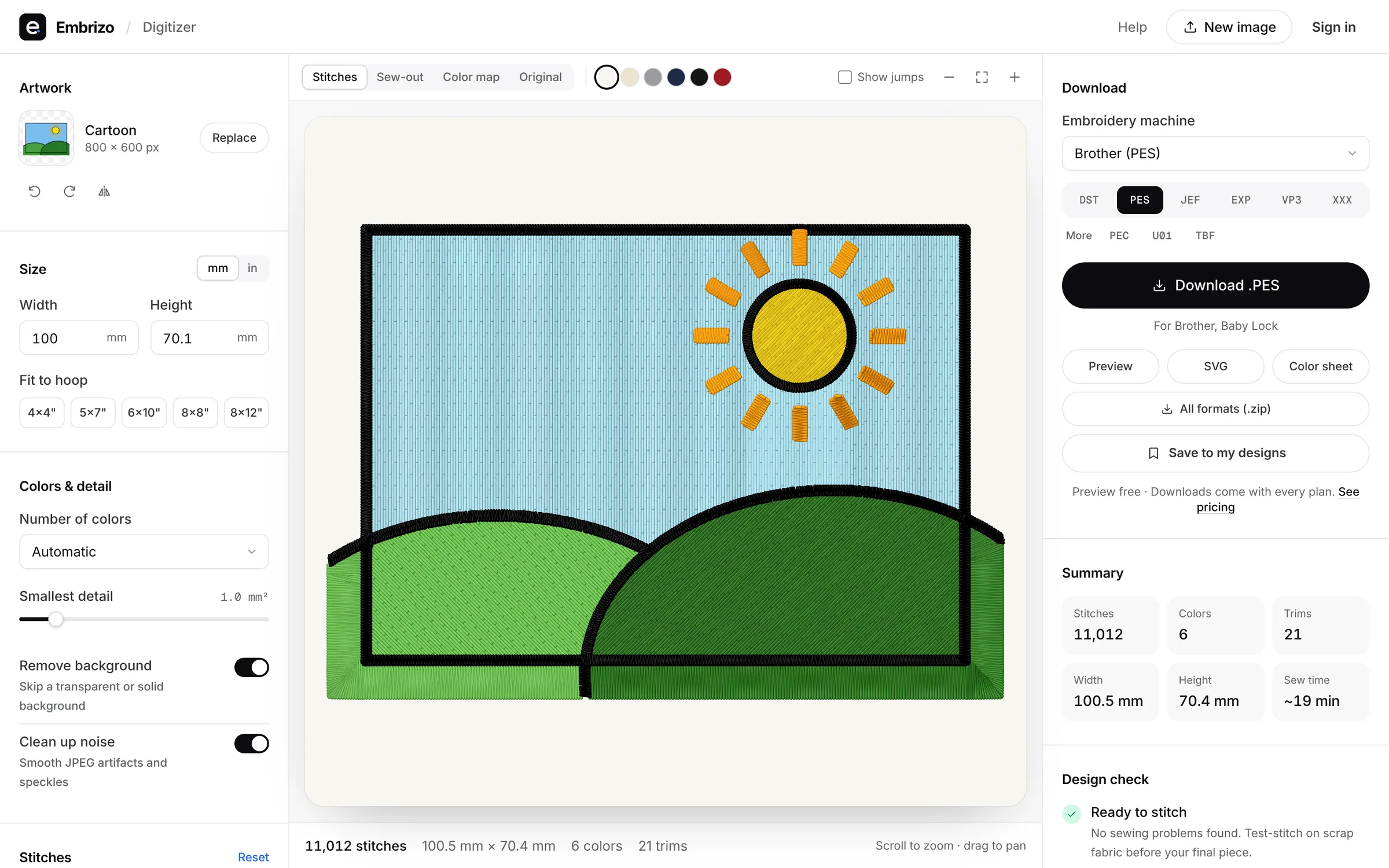
Embrizo's embroidery file editor opens a PES, DST, JEF, EXP, VP3, XXX, PEC, U01 or TBF file in the browser, with nothing to install, and lists its thread colors next to a realistic stitch preview.
- Drop the file into the editor. Each color stop appears in sewing order with its stitch count.
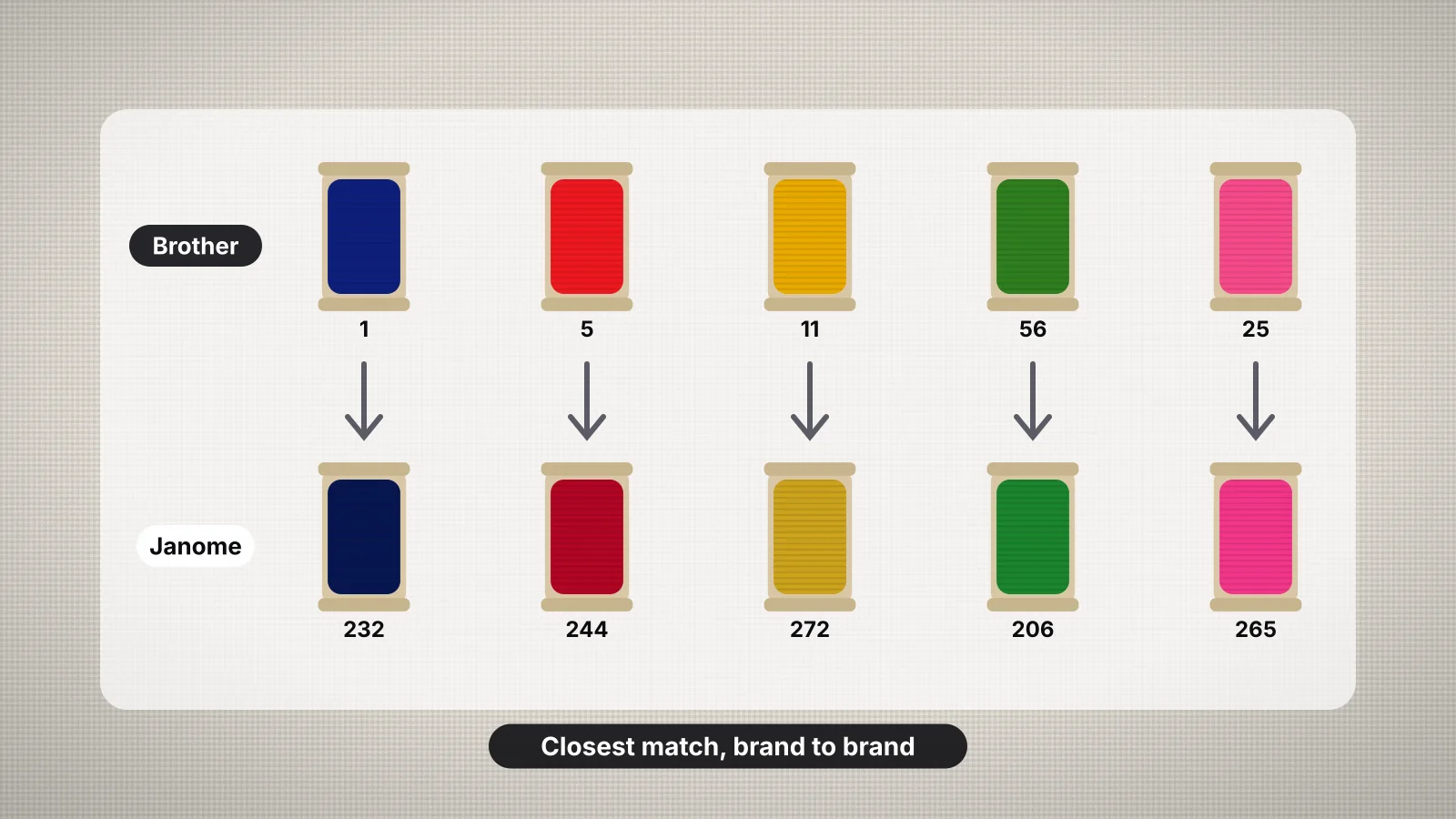
- Choose a thread chart: Brother or Janome. Switching charts matches every color to the closest thread in that chart.
- Pick a new thread for each stop from the list, with its name and code. The preview updates as you go.
- Check it on your fabric color in the preview, and watch the sew-out if you want to see the order.
- Rotate, mirror or resize in the same place if the design needs it, then save in the format your machine reads. Saving the file needs a plan.
Recoloring a DST and saving it as DST keeps nothing, because DST has nowhere to store colors. To keep the new colors in the file, save as PES, JEF, VP3 or XXX; for a DST machine, print the colors on a run sheet instead.
The thread list works the same way in the file converter, so you can recolor while you change format, for example a JEF made for Janome threads turned into a PES with Brother threads. Every stitch stays where it was; only the thread assigned to each stop changes.
Free and low-cost software that changes colors
Desktop and tablet editors can change colors too. Prices were checked in November 2026:
| Program | Runs on | Cost | Recoloring |
|---|---|---|---|
| Ink/Stitch | Windows, macOS 12+ and Linux, inside Inkscape | Free and open source | Opens embroidery files with File > Open as editable stitch paths; save a copy in your machine's format |
| StitchBuddy | Mac, iPhone and iPad | Free apps; saving designs over 1,000 stitches needs Pro ($49.99, Mac) or Go ($19.99, iPhone and iPad) | Changes thread colors and edits stitches |
| SewWhat-Pro | Windows | $65 one-time, with a 30-day demo | Changes and reorders thread colors |
| Embird | Windows | $149 for the basic program, with a demo of 30 days or 100 runs | Edits existing designs, down to single stitches |
| Truesizer (Wilcom) | Any browser, in WilcomWorkspace | About $49 a year, with a 14-day trial | Views, resizes and recolors designs |
| AcuEdit (Janome) | iPad and Android tablets, with the Memory Craft 15000 and Skyline S9 | Janome's app, from the App Store or Google Play | Changes thread colors and sewing order, then sends the design over wireless LAN |
For a quick recolor and a save in another format, a browser editor is usually faster than installing a program. Desktop editors earn their place when you also merge designs, edit stitches or manage a large library. The StitchBuddy and SewWhat-Pro comparisons have more detail.
Setting colors for DST files with a color sheet
A DST file has no colors to change, so you decide them at the machine. Machines fill in their own defaults when they open a DST: Janome's manuals say Janome thread colors are assigned automatically, and Baby Lock's say the design shows in a default thread sequence that you can change on screen.
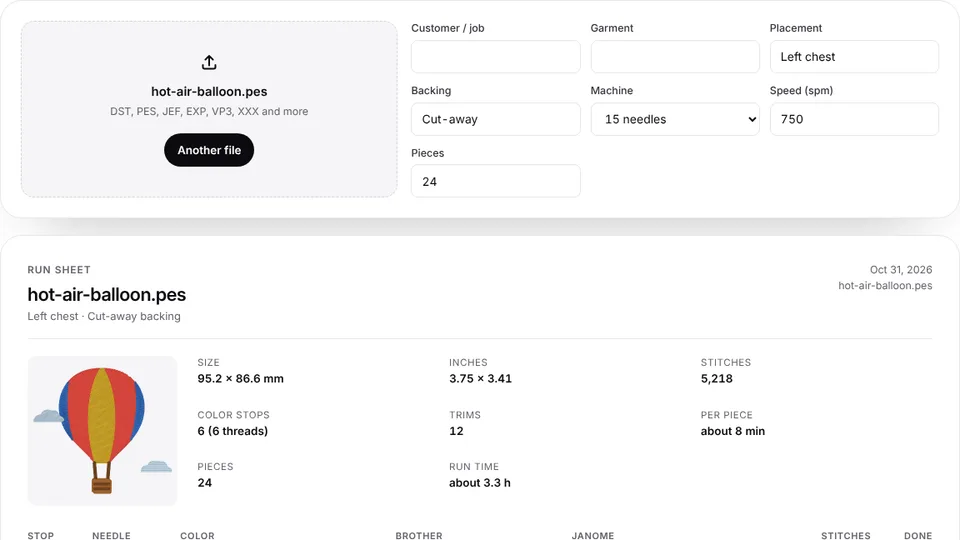
- Keep a color sheet with every DST. It lists each color stop in sewing order with its thread and stitch count, so the right thread goes on at each stop.
- For multi-needle machines, the embroidery run sheet turns a stitch file into a printable sheet with color stops, needle numbers for 6 to 15 needles, Brother and Janome thread matches and the run time.
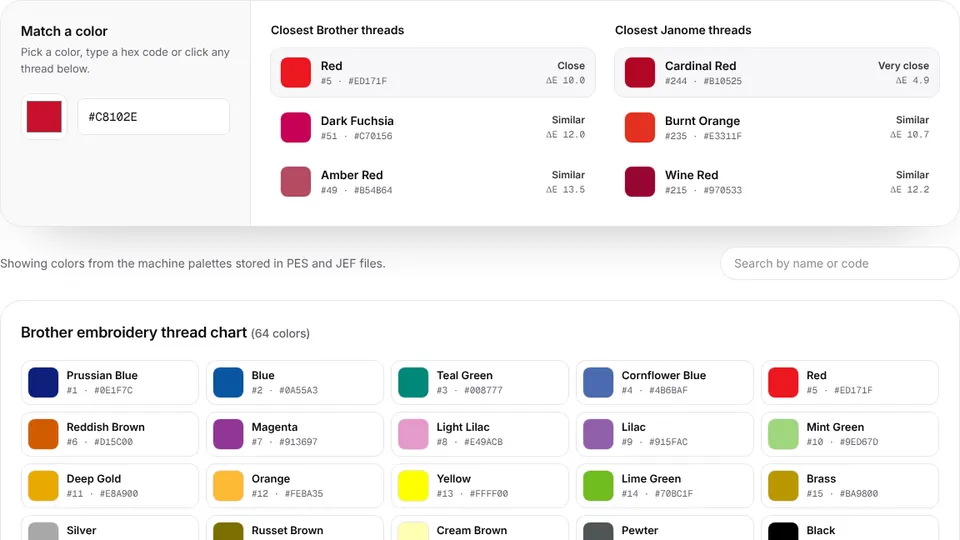
- Look up thread codes in the thread color chart, which has the Brother and Janome charts with a color matcher, and the Brother to Janome chart for swapping brands.
If your machine reads a color format, converting the DST once and setting the colors there saves repeating the work every run. The file converter does that, with the same thread list as the editor.
Recoloring artwork before you digitize it
When you have the original artwork, set the colors before the file exists. In the Embrizo digitizer, every color found in the image is listed with its thread:
- Pick a thread for each color from the Brother chart (61 threads) or the Janome chart (78), or keep the exact image colors for VP3 or XXX.
- Merge colors that should sew as one thread, so a design with two near-identical blues gets one color stop.
- Switch off a color you don't want stitched, such as a background box.
- Change the stitch type of a color, between auto, fill, satin and outline, if one area should look different.
To work out the colors first, the reduce image colors tool cuts a picture down to 2 to 12 thread colors with the closest Brother or Janome threads, and image to thread colors lists the threads an image would stitch with.
Practice on a free design
167 ready-to-sew designs in every machine format, free with an account.


Choosing replacement colors that sew well
- Keep the contrast. If the original had a dark outline around light fills, keep a dark-light pair, or the shapes run together from a distance.
- Check the fabric. A thread close to the garment color disappears, especially in thin satin and small lettering.
- Change light and dark together. Swapping only some colors of a shaded design can make the shading look backwards.
- Trust thread, not the screen. Screens show colors brighter than thread looks. Check the codes against a physical thread card before a big run.
For ideas, the embroidery color palette generator builds palettes matched to real Brother and Janome threads, and embroidery thread color combinations lists pairings that work on common fabrics.