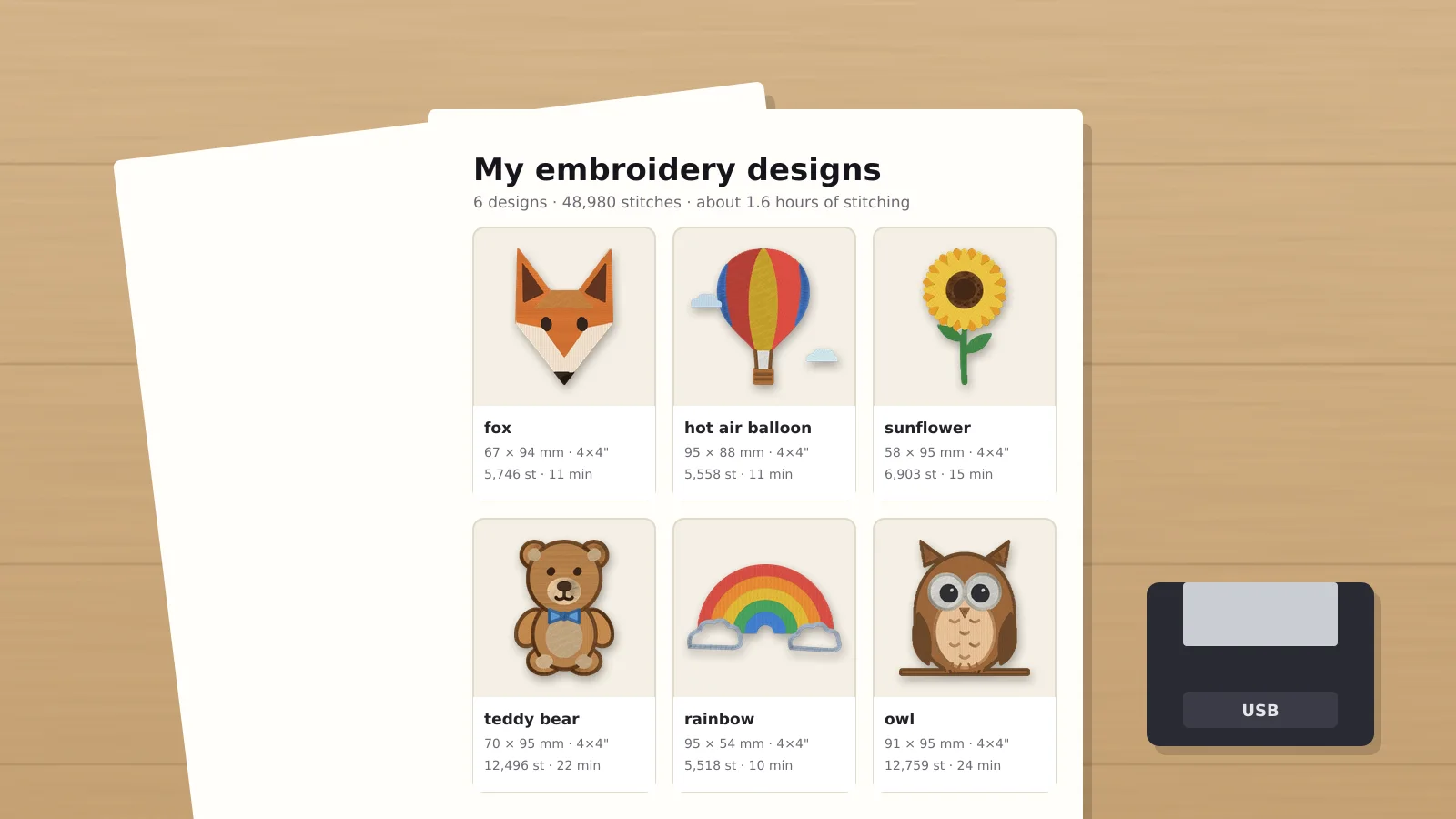
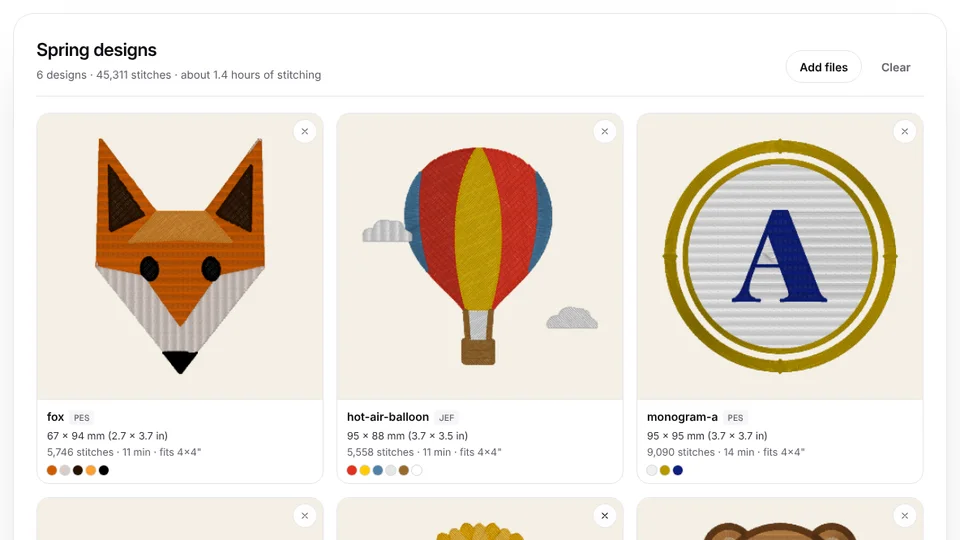
 Free toolEmbroidery design catalogDrop a folder of embroidery files and print a catalog: a thumbnail of every design with its size, stitches, colors and hoop.Open the tool
Embroidery collections grow fast: a bundle here, a free design there, files from three designers in nine formats, and a folder of customer logos. A few years in, finding the fox you know you bought means opening files one by one. Computers don't show embroidery files as pictures, so a good system matters more than with photos.
This guide sets up a folder system, file names and backups, then shows how to make a printed catalog of each folder with the embroidery design catalog, which draws every file as stitches with its size, colors and the smallest hoop it fits.
A folder system that works
Sort by what you're looking for when you stitch, which is usually the theme, not the designer or the date you bought it. One top folder with four parts keeps everything apart:
| Folder | What goes in it | Example |
|---|---|---|
| Purchased | The original ZIP files, untouched, as an archive | Purchased/2026-10 Fall bundle.zip |
| Designs | Unzipped designs, one subfolder per theme | Designs/Christmas, Designs/Monograms, Designs/Animals |
| My designs | Files you digitized or made yourself, with the source image | My designs/Smith family crest.pes and .png |
| Orders | Customer files by year and customer | Orders/2026/Jones bakery/logo-left-chest.dst |
- Themes that work: seasons and holidays, monograms and fonts, animals, flowers, kids, sports, quilting, in-the-hoop projects, appliqué.
- One level deep is enough for most collections. Folders inside folders inside folders hide designs.
- Fonts (BX files and alphabet sets) get their own folder, since you look for them differently.
- Keep the license or a note of the designer with each set, in case you sell what you stitch.
How should you name embroidery files?
Start with what the design is, then its size or hoop, then an optional short designer code. Use lowercase, hyphens and no accents or symbols:
| Instead of | Use | Why |
|---|---|---|
| DD_10234_A.pes | fox-head-4x4-dd.pes | Says what it is and which hoop |
| Christmas Gnome Final (2).pes | gnome-santa-5x7.pes | No spaces, brackets or version clutter |
| Initiale-É.pes | monogram-e-accent-4x4.pes | Some machines can't read accented letters |
| logo.dst | jones-bakery-left-chest.dst | Customer files stay findable |
Put the distinctive word first: some machines only show the first 8–12 characters of a file name on screen, and older ones won't read accented or special characters at all. Renaming doesn't change the stitches.
Try it with your own design
Sign up free, upload an image and get a stitch preview in under a minute.
Drop your image here
PNG, JPG, SVG, PDF or AI · stays on your device
Not sure what to expect? See real examples or how it works.
Which formats should you keep?
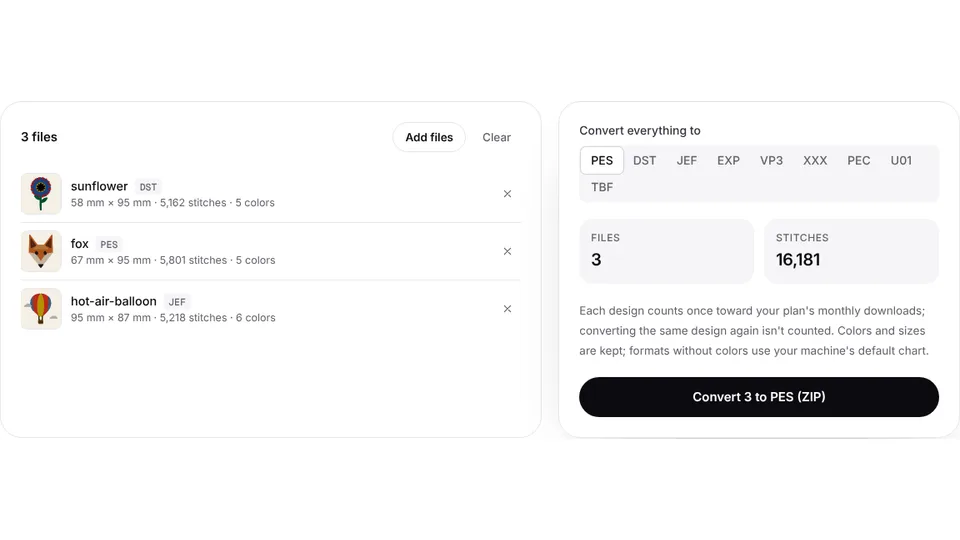
Bought designs usually come in a dozen formats. In your Designs folder, keep only your machine's format (PES for Brother and Baby Lock, JEF for Janome, EXP for Bernina, VP3 for Husqvarna Viking and Pfaff, DST for multi-needle machines) and the color sheet, and leave the rest in the original ZIP in Purchased. That cuts the clutter by ten, and nothing is lost if you change machines: the ZIP still has every format, and the batch file converter converts a whole folder at once. The file formats guide explains which machine reads what.
How to make a printed catalog of your designs
- Open the embroidery design catalog and press Choose a folder, or drop files on it. It reads PES, DST, JEF, EXP, VP3, XXX and more in your browser; nothing is uploaded.
- Give the catalog the folder's name, then sort by name, size or stitch count.
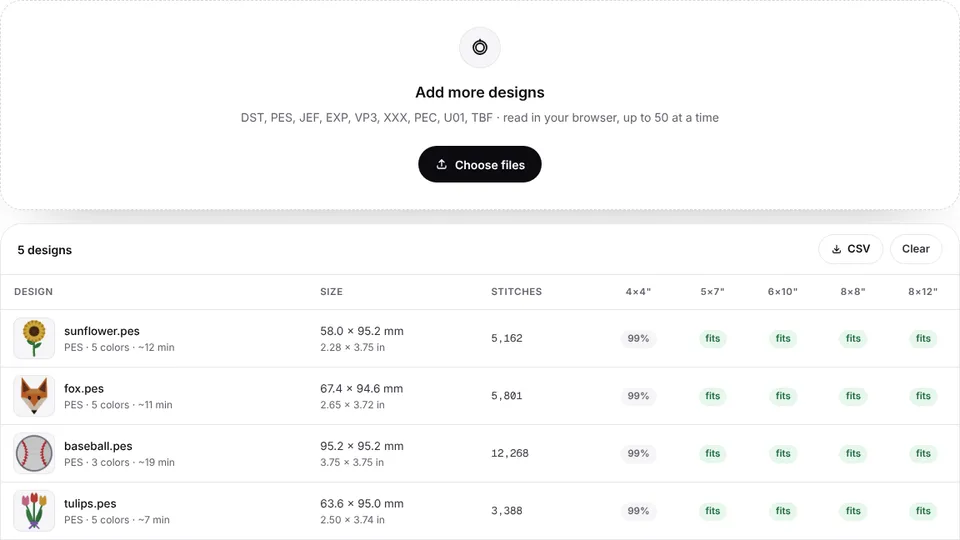
- Choose two, three or four designs per row. Each card shows a stitched thumbnail, the size in mm and inches, the stitch count, the sewing time, the thread colors and the smallest hoop the design fits.
- Print it, or save it as a PDF, and save the spreadsheet (CSV) to search the whole collection by size or hoop. Printing and the spreadsheet need a free account.
Keep the PDFs on a tablet next to the machine, or print them into a binder with one section per theme. Choosing designs for an order, or with a customer, is much faster from pictures than from file names.
How to find designs that fit your hoop
The catalog's card shows the smallest common hoop each design fits, and the spreadsheet has a hoop column to filter on. To check a set of files against your own hoop's exact sewing field, the hoop checker tests many files at once, and the machine compatibility checker checks format, size and stitch count for a specific model.
Practice on a free design
167 ready-to-sew designs in every machine format, free with an account.

Back up and move files safely
- Two copies, one off the computer: an external drive and a cloud folder. A collection of bought designs is worth hundreds of dollars.
- The USB stick is for the machine only. Copy today's designs to it, and keep the real collection on the computer; sticks fail and get lost.
- Don't edit on the stick. Change a design on the computer, save it into your folders, then copy it to the stick.
- Keep customer files for at least a year, with the approved proof, for reorders.
Moving designs to the machine is covered model by model in how to transfer embroidery designs to your machine. And when the collection is missing something, you can make it: the digitizer turns an image into a file in your machine's format, ready for its own folder.