Convert JPG to JEF embroidery files
JPG files work well once their compression noise is cleaned up. The digitizer smooths JPEG artifacts and blurry edges before it picks thread colors. Download a Janome JEF file for Janome, Elna machines.
Drop your JPG here
PNG, JPG, WebP or SVG · stays on your device
- Free, no signup
- Thread colors stored in file
- Runs in your browser
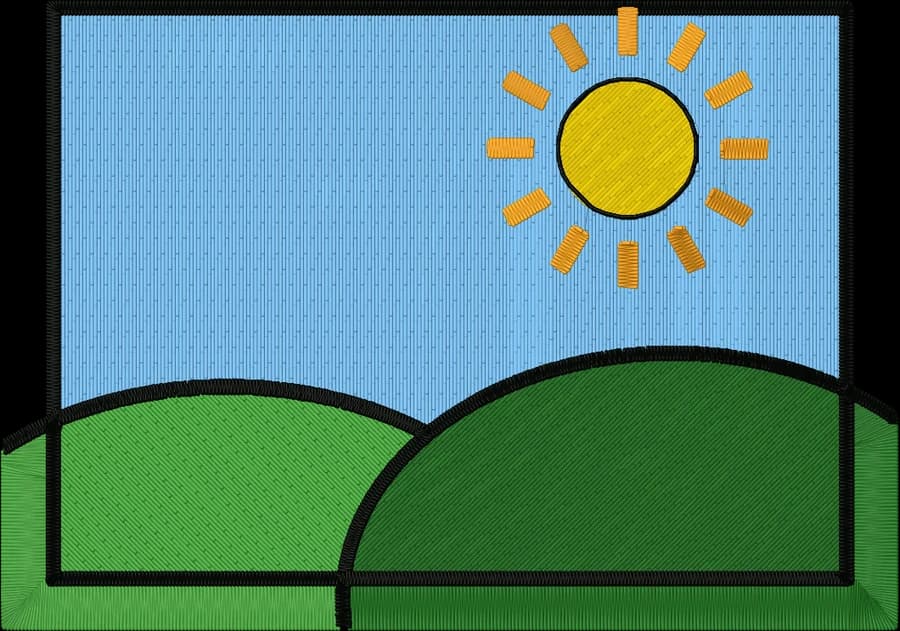
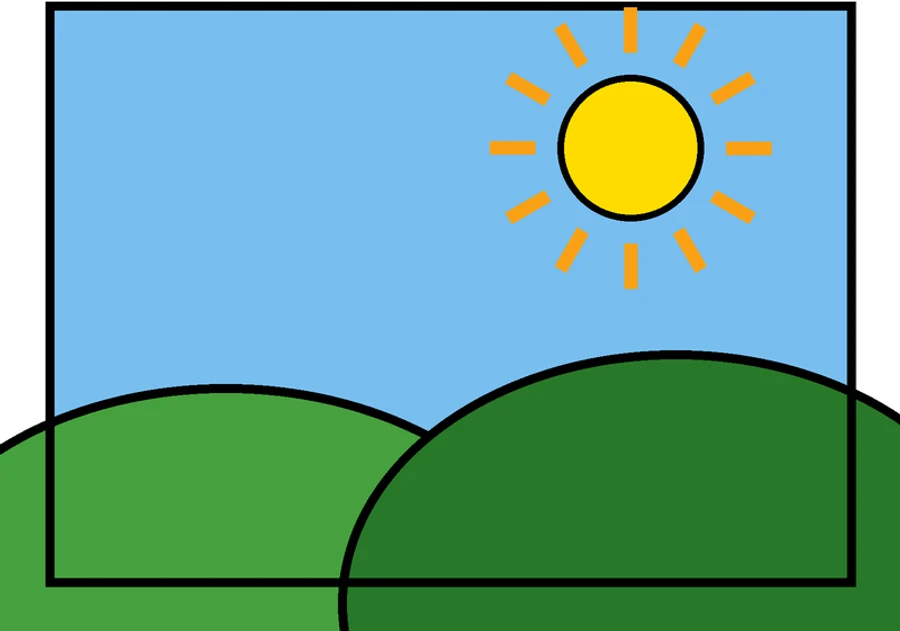
Compression noise is filtered
"Clean up noise" removes the speckles and color fringes JPEG adds around edges, so they don't become extra threads.
Solid backgrounds are removed
A white or single-color background around the artwork is detected and left unstitched.
Fewer colors, cleaner result
Cap the number of colors if gradients or shading split into too many thread colors.
How to convert a JPG to JEF
It takes about a minute, and you can preview every stitch before you download.
- 1
Upload your JPG
Drop the .jpg file into the box above or open the digitizer.
- 2
Set the size
Type a width, or pick your hoop from 4×4" to 8×12". The proportions are kept.
- 3
Check colors and stitches
Review the thread colors, the stitch preview and the design check. Switch off any color you don't want stitched.
- 4
Download the .JEF file
Choose Janome or the JEF format and download. Copy the file to your machine by USB or its app.
The Janome JEF format
JEF is Janome's embroidery format, used by the Memory Craft and Skyline embroidery machines and by Elna machines built on the same platform.
Thread colors are mapped to Janome's thread palette. The file also records the smallest standard Janome hoop the design fits in.
Moves longer than 12.7 mm, the format's limit, are split into shorter jumps automatically.
Tips for the best result
- Use the highest-quality JPG you have. Screenshots of small logos lose detail.
- If the logo sits on a busy background, crop it or remove the background first.
- For photos, start with 4 to 6 colors and adjust from there.
More detail in our guide to preparing artwork for embroidery.
JPG to JEF converter questions
The quickest way to see what it does with your artwork is to try it. It's free and takes about a minute.
Will JPEG artifacts show up in the embroidery?
No. Noise reduction and anti-alias cleanup run before color separation, so blocky artifacts and soft edges are folded into the nearest real color.
Can I convert a photo saved as JPG?
Yes. Photos are simplified into a few flat thread colors, which suits simple, high-contrast pictures best. See the photo-to-embroidery page for tips.
Which Janome hoop will the design use?
The file is tagged with the smallest standard hoop it fits (50×50, 126×110, 140×200 or 200×200 mm). Set the size in the digitizer to fit your hoop before downloading.
Can I change the thread colors?
Yes. Choose the Janome thread chart in the digitizer and pick any thread for each color before you download.
Is this embroidery digitizer really free?
Yes. You can digitize and download as many designs as you like, in every format, without signing up. Everything runs in your browser, so there are no server costs to pass on.
Is my image uploaded to a server?
No. Your image is processed entirely on your own device in your web browser and is never uploaded. If you sign in and save a design, only the finished stitch file, a small preview and its thread colors are stored in your account, never the original image.
Keep going
Related tools and guides
- Machine guideJanome machinesJEF files for Janome and Elna embroidery machines, with Janome thread colors and hoop sizes.Open
- Free toolHoop size calculatorFind which hoops fit your design and how far to scale it down if it's too big.Open
- Free toolText to embroidery fileType a name or monogram, pick a font and download a ready-to-sew lettering file.Open
- Free toolStitch count & price calculatorEstimate stitches, sew time and price for any design size and coverage.Open
Make your JEF file now
Upload an image, preview the stitches and download a Janome JEF file in under a minute.